
Backing up your library is the simplest way to protect your data from accidental loss, device changes, or reinstalls. Book Tracker creates automatic backups in the background and lets you create manual backups whenever you want, both on iPhone, iPad, and Mac.
This guide explains how backups work, where they are stored, and how to manage them. If you need to restore a backup, see How to restore a backup (and recover deleted books).
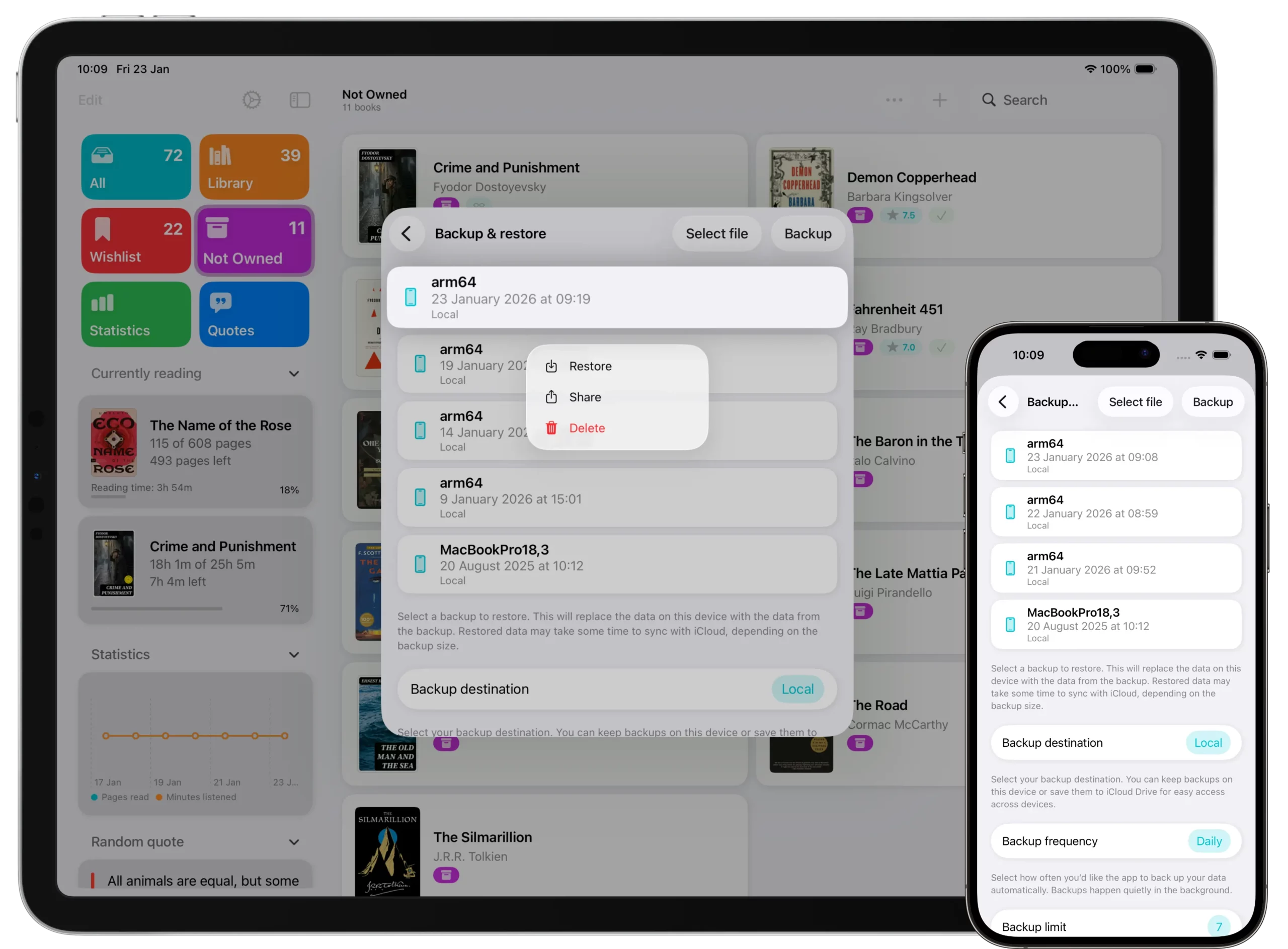
How automatic backups work
Book Tracker checks every 12 hours whether a new backup should be created, according to the frequency you’ve chosen. Backups are created silently in the background; you don’t need to do anything.
You can configure two things from Settings → Backup & Restore:
Backup frequency
- Daily — a backup is created once per day (default).
- Weekly — once per week.
- Monthly — once per month.
- Never — automatic backups are disabled. You can still create manual backups.
Backup limit (rotation)
How many backups to keep before older ones are removed:
- 3, 7, 10, 30, or Unlimited.
The default is 7, enough to recover a mistake made up to a week ago. If you have multiple devices syncing backups to iCloud Drive, this limit applies per device: each device keeps its own slice of the list.
Where backups are stored
You can choose the destination from Settings → Backup & Restore:
- Local storage (on this device) — backups stay only on the device that created them. They are not synced. If you delete and reinstall the app, local backups are gone.
- iCloud Drive (recommended if you use multiple devices) — backups are saved in the Book Tracker folder of iCloud Drive. All your devices signed into the same Apple ID can see and restore them.
If you choose iCloud Drive but the service is temporarily unavailable, Book Tracker automatically falls back to local storage so the backup is never lost. The app will retry iCloud on the next cycle.
💡 Per-device tracking: every device “tags” its backups internally. When the rotation limit kicks in, your device only deletes its own old backups. Those of other devices are kept according to their own rotation.
Create a manual backup
Use a manual backup before any risky operation: a large import, a bulk edit, a factory reset, switching Apple ID, or troubleshooting.
On iPhone or iPad
- Open Book Tracker → Settings → Backup & Restore.
- Tap Backup.
- A new entry with the current date and time appears at the top of the list.
On Mac
- Open Book Tracker → Settings → Backup & Restore (from the menu bar).
- Click Backup.
- A new entry with the current date and time appears.
Export a backup file
Backups live inside Book Tracker (locally or in your iCloud Drive folder). If you want a copy outside the app (e.g., to send to another device, save on an external disk, AirDrop to your Mac, or email to yourself) you can share any backup:
- Open Settings → Backup & Restore.
- Long press the backup on iPhone/iPad (or right-click on Mac).
- Tap Share.
- Choose a destination (Files, AirDrop, email, etc.).
⚠️ Before changing or uninstalling the app: if your backups are stored locally and you plan to delete Book Tracker or replace the device, export at least one backup first. Local backups are removed with the app.
What’s inside a backup?
A Book Tracker backup is a single .zip file containing:
- A
backup.jsonwith every item in your library: books, authors, publishers, translators, narrators, illustrators, series, tags, categories, locations, bookcases, shelves, reading statuses, reading progress, ratings, notes, quotes, loans, contacts, smart lists (filters), challenges, purchase data. - A
files/folder with the binary copies of all custom covers and attached files.
Backups are full-fidelity: a restore brings the library back exactly as it was at the moment the backup was created.
Backup vs CSV: which one should I use?
Use backups when you want to restore or migrate your full library. Every detail is preserved.
Use CSV when you want to analyze data in a spreadsheet, share a snapshot of selected fields, or archive a lightweight version of your collection. CSV doesn’t carry everything (no quotes, no notes, no progress timeline, no covers).
For details, see How to export your library from Book Tracker.
Best practices
- Let automatic daily backups run. They’re your safety net.
- Create a manual backup before large imports, bulk edits, or troubleshooting.
- If you have multiple devices, choose iCloud Drive as the destination so any device can restore from any backup.
- Periodically export an extra copy to Files or AirDrop if you want long-term safety outside iCloud.