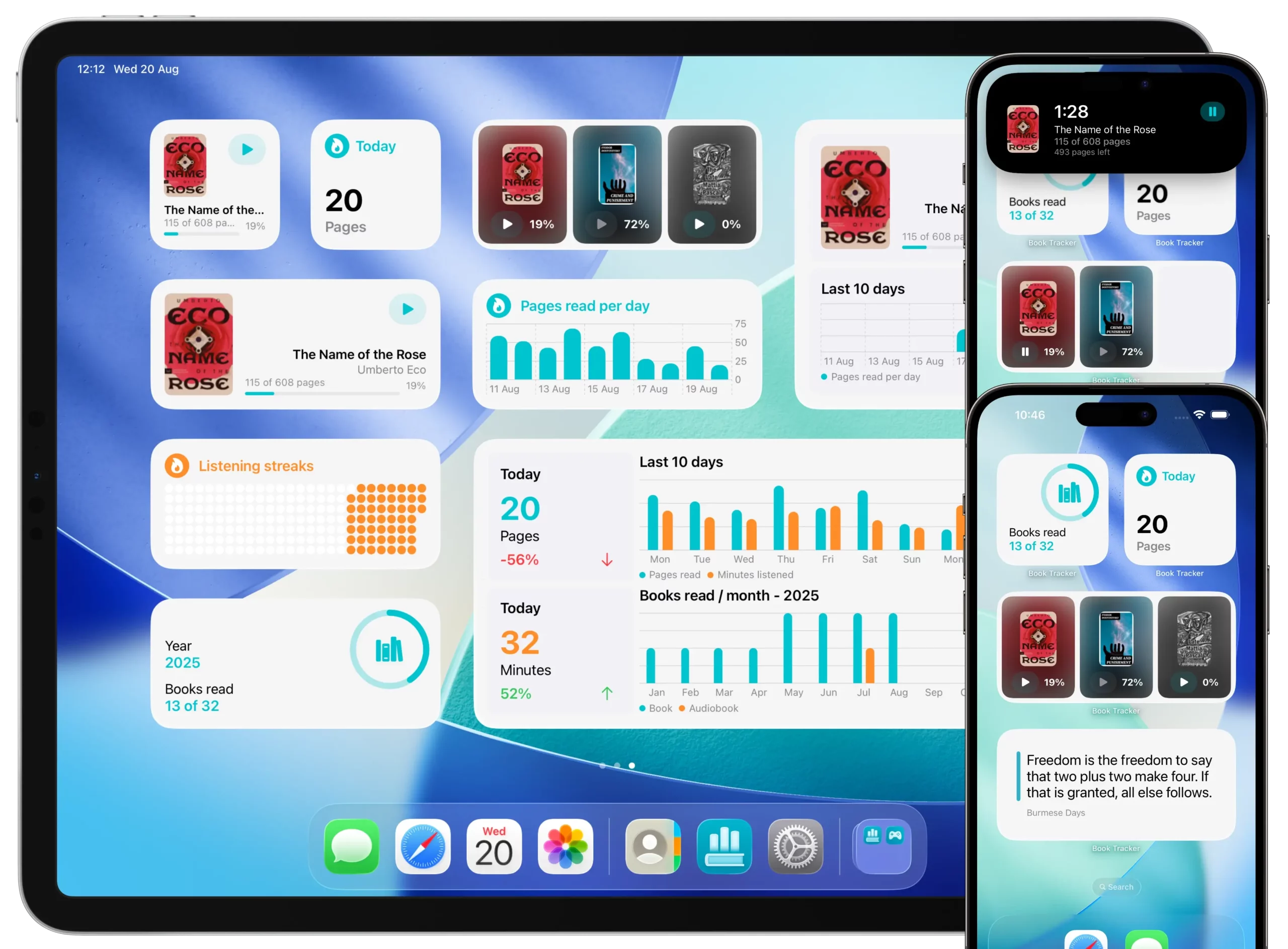
Book Tracker provides 14 widgets that you can place on the Home Screen, Lock Screen, in StandBy, and on the Mac desktop. They show what you’re reading, your statistics, random quotes, and your Reading Challenge. Two of them are interactive, so you can start and pause the Reading Timer directly from the widget without ever opening the app.
This tutorial covers the full lineup, what each widget does, and where you can put it.
ℹ️ Three different widget systems, one app. Book Tracker also has Control Center widgets (iOS 18+) and Apple Watch complications — those are covered in their own tutorials:
The 14 widgets
Reading-focused widgets
| Widget | Display name | What it shows | Sizes | Configurable | Interactive |
|---|---|---|---|---|---|
| Currently Reading Books | “Currently reading books” | Books currently in Reading status, with cover and progress | Small · Medium · Large · Lock Screen rectangle | Automatic | ✅ Play/Pause |
| Book | “Book” | A specific book of your choice (default: currently reading) | Small · Medium · Large · Lock Screen rectangle | ✅ Pick a book | ✅ Play/Pause |
Both of these widgets have an interactive Reading Timer button on iOS 17+ and macOS Sonoma+. Tap the play icon to start the timer, tap pause to pause, tap resume to continue, all from the Home Screen, no need to open the app. The button can be hidden in Settings → Reading Timer if you don’t want it.
Statistics widgets
| Widget | Display name | What it shows | Sizes |
|---|---|---|---|
| Statistics | “Statistics” | One specific stat (today’s pages, today’s listening time, reading sessions, streaks, …) | Lock Screen circular · Lock Screen rectangle · Home Small |
| Statistics (Chart) | “Statistics” | A chart visualization (e.g., reading heatmap, pages over time) | Home Medium |
| User Progress | “Reading progress” | Heatmap of pages read this year vs previous year | Extra Large (iPad only) |
The Statistics widget asks you which metric to show during configuration. Available metrics include:
- Today’s pages read
- Today’s listening time
- Today’s reading sessions
- Reading streaks (consecutive days)
- Listening streaks
Five Inline statistics widgets
These are tiny Lock Screen inline widgets, one line of text under the time, on iPhone Lock Screen and Apple Watch face complications. Each one shows a single metric:
- Today’s pages read
- Today’s listening time
- Today’s reading sessions
- Reading streaks
- Listening streaks
Pick the one that matters most to you, most readers prefer pages or streak.
Reading Challenge widget
| Widget | Display name | What it shows | Sizes |
|---|---|---|---|
| Reading Challenge | “Reading Challenge” | Current Yearly Reading Challenge progress (books read vs target) | Lock Screen circular · Lock Screen rectangle · Small · Medium |
You can target the current year’s challenge or pick a specific one if you’ve created multiple.
Quote widget
| Widget | Display name | What it shows | Sizes |
|---|---|---|---|
| Book Quote | “Book” | A random quote from your library, or quotes from a specific book | Medium · Large |
The quote refreshes automatically over time. Configure it to show:
- Random from any book, or
- Random from a specific book you pick.
Quick action widgets
These open a specific Book Tracker screen with one tap. Useful for fast actions when adding new books:
| Widget | Display name | What it does | Sizes |
|---|---|---|---|
| Online search | “Online search” | Opens the online book search screen | Lock Screen circular · Small |
| Scan barcode | “Scan barcode” | Opens the barcode scanner (camera) | Lock Screen circular · Small |
Where you can place widgets
| Surface | Available? | Notes |
|---|---|---|
| iPhone Home Screen | ✅ | All widgets, all sizes |
| iPhone Lock Screen | ✅ | Circular, inline, and rectangular widgets |
| iPhone StandBy | ✅ | Home Screen widgets work in StandBy too |
| iPad Home Screen | ✅ | All widgets — Extra Large for the User Progress heatmap |
| iPad Lock Screen | ✅ (iPadOS 17+) | Same as iPhone Lock Screen |
| Mac desktop / Notification Center | ✅ | All widgets except User Progress (Extra Large is iPad-only) |
| Apple Watch face | ➡️ separate complications | See the Apple Watch tutorial |
| Control Center (iOS 18+) | ➡️ separate widgets | See the Control Center tutorial |
How to add a widget
The procedure is the standard iOS / iPadOS / macOS one:
iPhone & iPad
- Long press an empty area of the Home Screen or Lock Screen.
- Tap + in the top-left to open the widget gallery.
- Scroll or search for Book Tracker.
- Pick the widget you want, choose the size, and tap Add Widget.
- For configurable widgets (Book, Statistics, Reading Challenge, Quote), long press the widget after adding it and choose Edit Widget to pick the book, the stat, the challenge, etc.
Mac
- Click the date/time in the menu bar to open Notification Center, then click Edit Widgets at the bottom.
- Or long press the desktop (macOS Sonoma+) and select Edit Widgets.
- Find Book Tracker, drag the widget where you want it.
- Configure with Edit Widget the same way as on iOS.
How to configure a widget
Most widgets let you customize what they show.
- Long press the widget.
- Tap Edit Widget.
- Set the parameters:
- Book widget → pick a specific book.
- Statistics widget → pick the metric.
- Reading Challenge widget → pick which challenge (current is the default).
- Book Quote widget → random or specific book.
- Tap outside the popover to save.
Widgets with no configuration (Currently Reading Books, the Inline statistics, the Quick action widgets) work immediately after adding.
On older iOS versions
If you’re on iOS 15 or 16, you’ll see slightly simpler versions of the same widgets. The same features are available (book progress, quotes, reading challenge, statistics) but without the interactive Reading Timer button. iOS 17+ is required for interactive widgets and for the modern designs.
Best practices
- Place a Currently Reading Books widget on your Home Screen, it gives you a one-tap path back into what you’re reading.
- Use the Lock Screen inline statistics for an at-a-glance reading streak that you see every time you check your phone, a small daily nudge.
- Pair a Book Quote widget with a Statistics widget for a balance of inspiration (quote) and accountability (numbers).
- On Mac, put a Statistics widget in Notification Center, perfect for desk-based reading sessions.
- Don’t add the same configurable widget twice with the same configuration, instead, add it twice with different parameters (e.g., one Book widget for your fiction, another for your non-fiction).
Related
- How to use Control Center widgets — 17 additional Control Center widgets for one-tap actions.
- How to use Book Tracker on Apple Watch — complications for your wrist.
- How to use the Reading Timer + Live Activity + Dynamic Island — the interactive widget button leverages this.
- How to view and understand your reading statistics — the data behind the Statistics widgets.