
In Book Tracker, every book in your library has a Reading Status, a simple label that tells you whether you’ve read it, are reading it now, plan to read it later, or decided to set it aside. Reading Statuses are the foundation of how the app tracks your reading life and powers all your statistics.
This guide covers the five statuses and the different ways to set them. If you want to track how much you’ve read (pages, time, percentage) or use the Reading Timer, see the related tutorials linked at the end.
The five Reading Statuses
Book Tracker supports five Reading Statuses:
- Unread — books you’ve added to your library but never started.
- To Read — books you actively plan to read.
- Reading — books you’re currently reading.
- Read — books you’ve finished.
- Abandoned (also known as “did not finish”) — books you started but decided not to finish.
You can change a book’s reading status at any time, and a book can have multiple Reading Statuses over time. That’s how you track re-reads (more on this below).
How to set or change a Reading Status
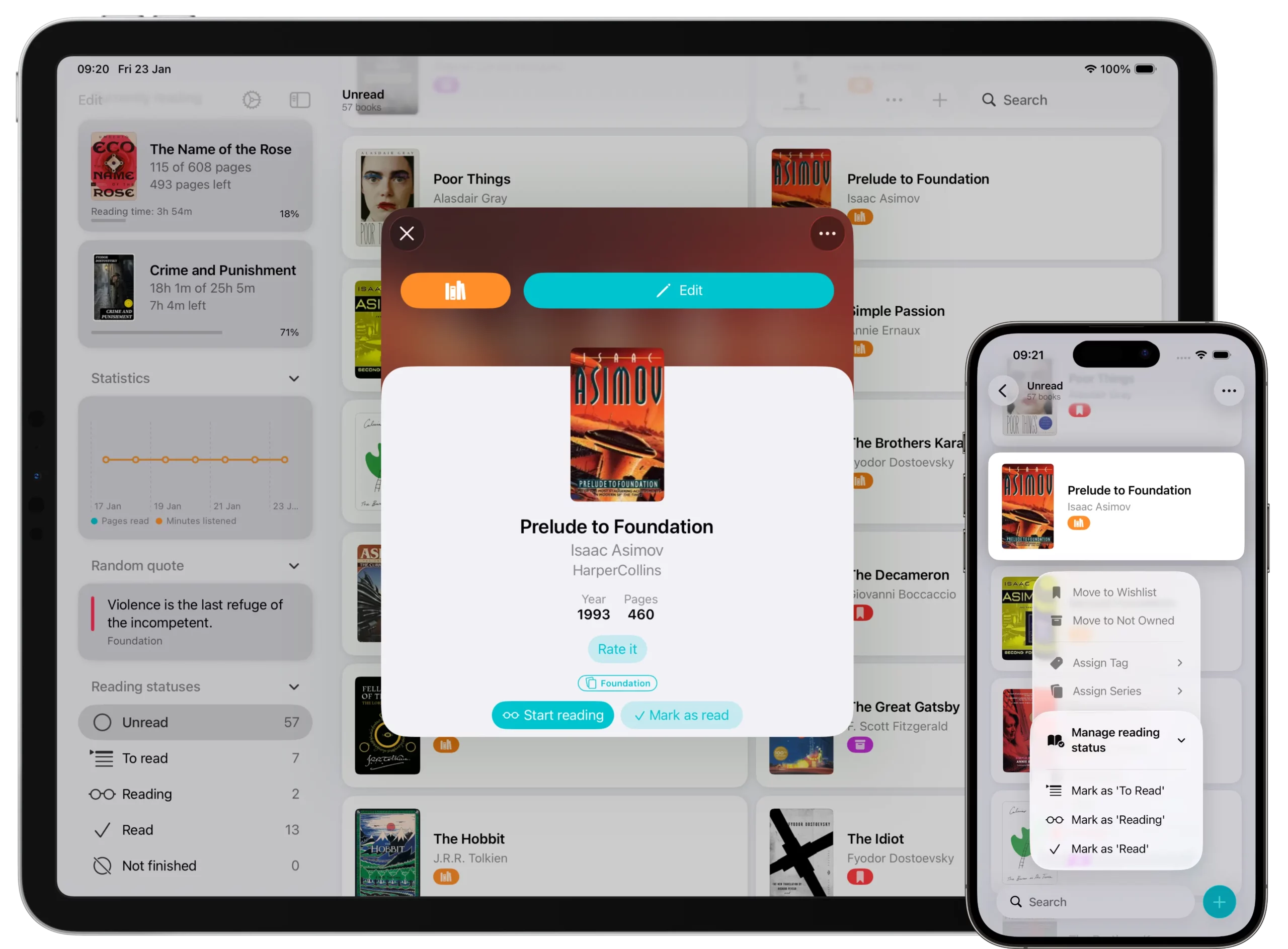
There are three ways to assign or change a Reading Status:
From the book list
- Long press a book (on iPhone/iPad) or right-click (on Mac).
- Select Manage Reading Status.
- Choose: Mark as To Read, Mark as Reading, or Mark as Read.
From the book detail page — three-dot menu
- Open the book.
- Tap the three-dot menu (top-right).
- Select Manage Reading Status and pick one of the same four options.
From the book detail page — main buttons
If the book has never been read, the detail page shows two quick-action buttons under the title and author:
- Mark as Read — sets the status to Read.
- Start Reading — sets the status to Reading.
When you choose any of these, Book Tracker opens the Reading Status creation screen with the status preselected. Here you can optionally add a start date and a finish date. See the section below on statistics for why dates matter.
Marking multiple books at once
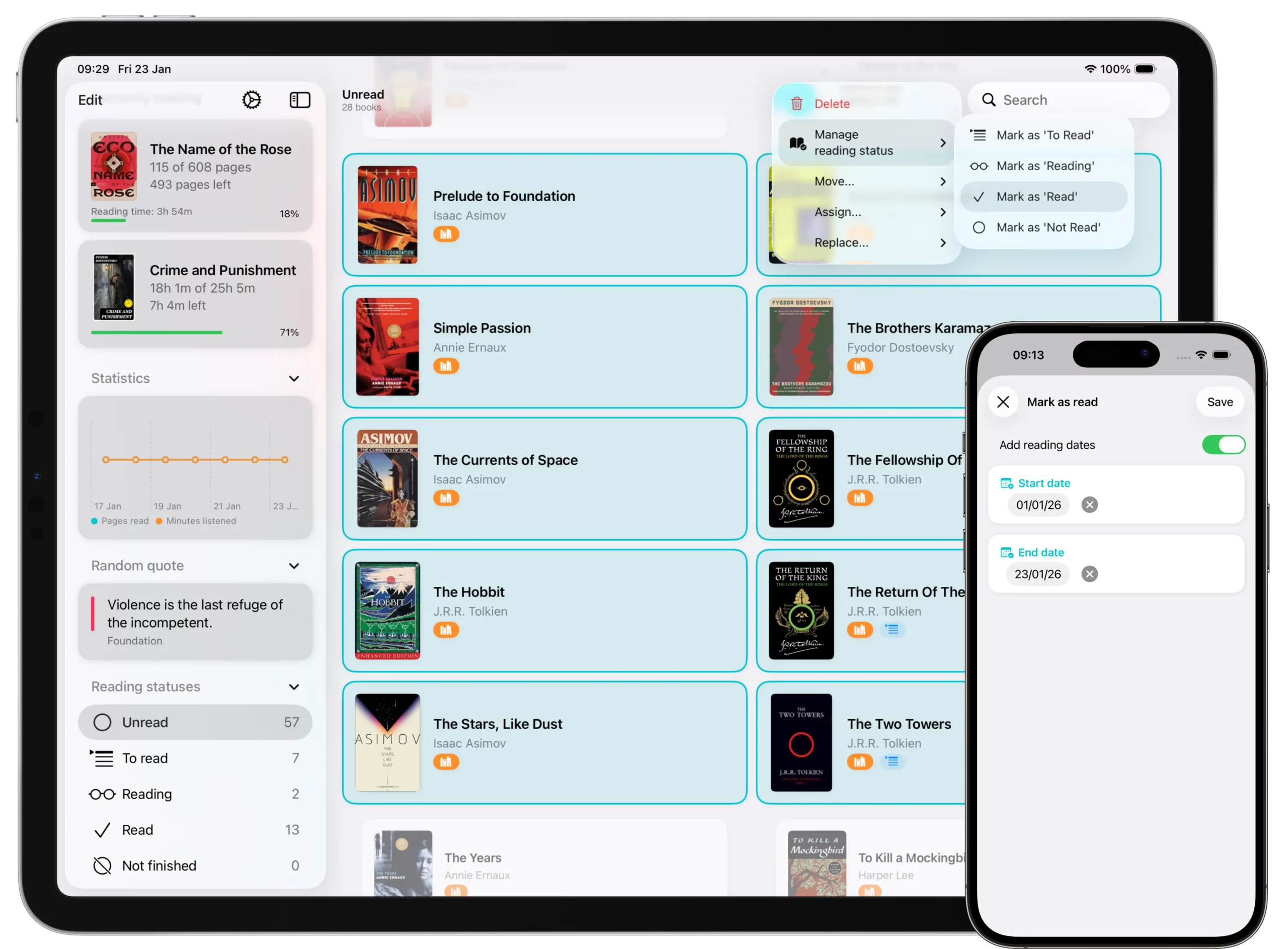
You can change the Reading Status of many books in one go:
- Open any book list.
- Tap the three-dot menu in the top-right.
- Select Select Books.
- Tap each book you want to update.
- Tap the three-dot menu again.
- Select Manage Reading Status and choose the new status.
When multiple books are selected, Book Tracker asks how to proceed:
- Set the status without dates, or
- Apply the same start date and finish date to all selected books.
💡 If many of the selected books are missing a page count or audiobook length, Book Tracker shows a single screen where you can fill in the missing info for all of them at once. This keeps your statistics accurate.
Reading history — tracking re-reads
A book can have more than one Reading Status over time. Each time you start reading the same book again, you create a new Reading Status. The old ones stay in the Reading history section of the book detail page.
To see all past Reading Statuses for a book:
- Open the book.
- Scroll to Reading history.
- Tap Show all to expand the list.
- Tap the + button to create a new Reading Status (for example, a re-read).
This is the right way to track re-reading the same book without losing the record of previous reads.
Page count and audiobook length
For statistics to be calculated correctly, books should have:
- A page count for printed books and eBooks, or
- A length (in HH:mm) for audiobooks.
When you mark many books as read at once, some might be missing this information. Book Tracker lets you choose to:
- Skip the missing info during Reading Status creation, or
- Fill it in on a single screen that lists all the books that need it.
Why a finished book might not appear in statistics
If a book you marked as read doesn’t show up in your statistics, the most common reason is missing reading dates. Book Tracker’s statistics are year-based, so for a book to appear in a given year:
- A start date and a finish date must be set.
- Both dates must fall within the year you’re viewing.
If you marked a book as read without dates, it won’t be counted in any yearly statistic.
To fix it:
- Open the book.
- Open its Reading Status.
- Add the correct start and finish dates.
Best practices
- Add start and finish dates when marking a book as read, otherwise it won’t show up in yearly statistics.
- Create a new Reading Status for each re-read instead of editing the old one. The Reading history section preserves the full timeline.
- For multi-select mark as read, fill in missing page counts in the single screen Book Tracker offers. It takes seconds and keeps statistics accurate.
Next steps
- 👉 How to track detailed reading progress with pages, time, or percentage — track how much you’ve read in a specific Reading Status.
- 👉 How to use the Reading Timer + Live Activity + Dynamic Island — time your reading sessions automatically.
- 👉 How to set and follow your Yearly Reading Challenge — set a yearly goal and watch progress.