
Tags are simple, flexible labels you can attach to any book. Unlike Series, Positions, or Reading Status, which have a fixed meaning, Tags let you organize books by any criteria you invent. You can assign as many Tags as you want to the same book, and use them as filters in Smart Lists for dynamic, automatic groupings.
What you can do with Tags
A Tag is just a label. The power comes from how you use them. Common patterns:
- Personal status: Signed by author, Gift, Book club
- Themes or moods: Cozy, Comfort read, Page turner, Slow burn
- Source or context: Library loan, Kindle, Holiday read, Travel pick
- Granular categorization: Fantasy ↔ Hard Sci-Fi, Literary Fiction ↔ Genre Fiction
- Workflow: To research, Reading for thesis, Citing in article
A single book can carry several Tags at once. For example a hardback you borrowed from a friend, signed by the author, that you’re planning to re-read can be tagged Borrowed, Signed, To re-read.
How to create a Tag
There are two ways:
- While assigning a Tag to a book — when the “Add Tag” view shows the list of existing tags, you can tap + New Tag to create one on the fly.
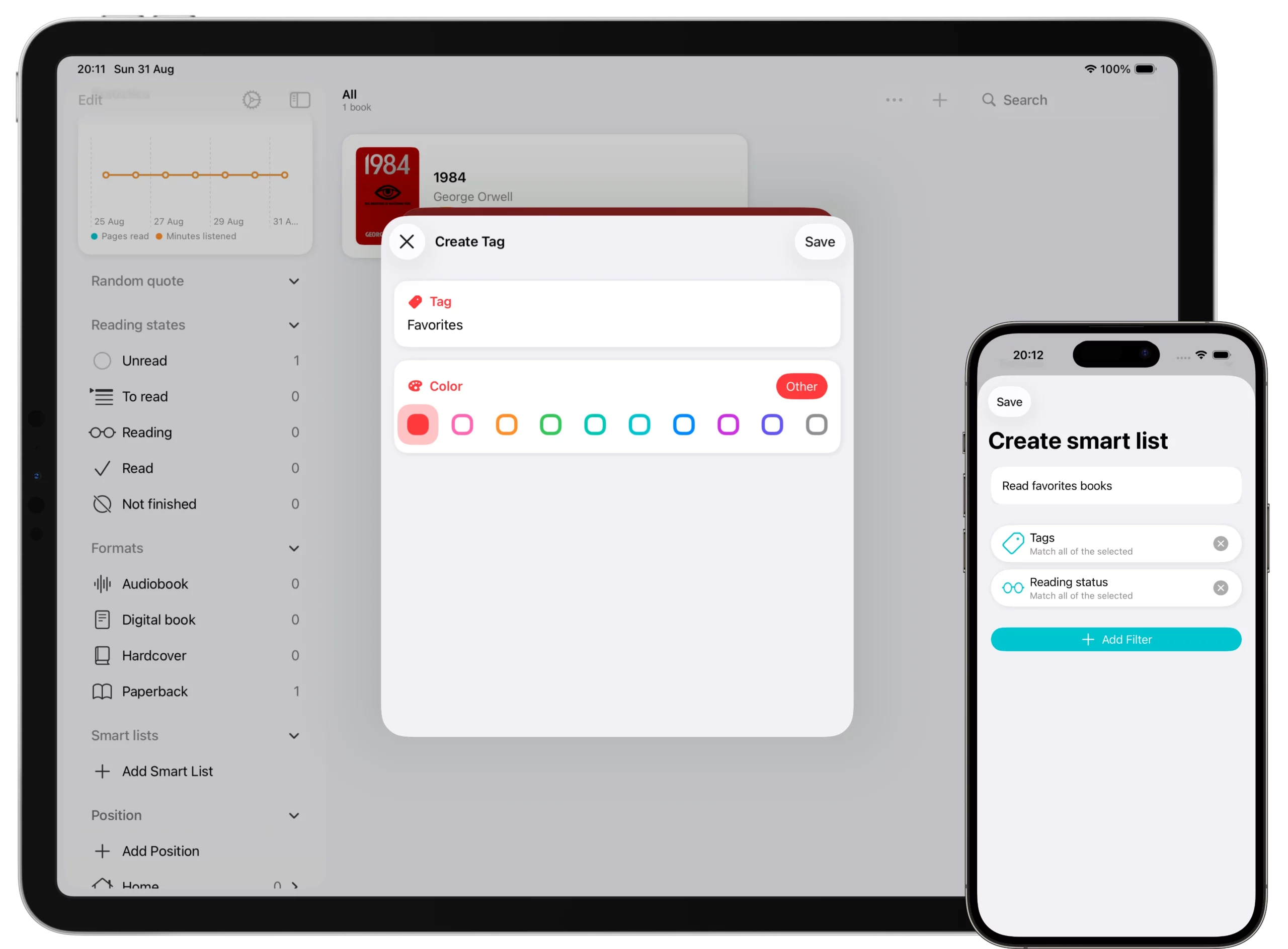
- From the Tags section (in the Home on iPhone or the Sidebar on iPad and Mac) → tap + Add Tag.
For each Tag you choose:
- A name (e.g., “Signed by author”).
- A color. Book Tracker offers 10 preset colors (Red, Pink, Orange, Green, Mint, Teal, Blue, Purple, Indigo, Gray). If none of them fits, tap Other to open a full color picker and pick any custom color.
💡 Color is what makes Tags visually scannable in the book list and detail page. Pick colors that mean something to you (e.g., red for “urgent”, green for “loved”, gray for “neutral metadata”).
How to assign a Tag to a book
- From the book detail page
- Open the book.
- Tap Edit.
- Scroll to the Tags section.
- Add an existing tag or create a new one.
- From the book detail page (quick assign)
- Tap the three-dot menu (top-right).
- Select Assign → Tags.
- From a book list
- Long press a book (on iPhone/iPad) or right-click (on Mac).
- Select Assign → Tags.
You can also assign the same Tag to many books at once with Bulk Edit.
How to find all books with a Tag
- On iPhone → Home → scroll to the Tags section → tap a Tag to see the list of books carrying it.
- On iPad / Mac → Sidebar → expand Tags → select a Tag.
The list updates automatically as you add or remove the Tag from books.
Manage your existing Tags
To rename a Tag:
- Long press the Tag (or right-click on Mac) → Edit → change the name and color → confirm.
To delete a Tag:
- Long press the Tag (or right-click on Mac) → Delete.
- The books that carried the deleted Tag remain in your library; they simply lose that Tag.
To change a Tag’s color:
- Edit the Tag and pick a new preset color or a custom one from the color picker.
Tags vs Categories
Tags are intentionally personal and free-form. Categories, instead, represent the book’s genre/topic as imported from online sources (Fiction → Fantasy → Epic Fantasy, for example) and are managed separately.
The two work side by side: use Categories for the objective genre, and Tags for your personal organization.
Best practices
- Keep tag names consistent.
Signed by authorandsignedwill become two different Tags. - Use color as a visual cue. When you scroll the library, similar colors group at a glance.
- Don’t over-tag. Fewer, meaningful Tags beat dozens of one-off labels.
- Pair Tags with Smart Lists to build dynamic views of your library (see below).
Take it further: Smart Lists
Tags become really powerful when you combine them with Smart Lists, dynamic groupings of books that match filters you define. For example: all unread audiobooks tagged “Comfort read” or all books I rated 5 stars tagged “Fantasy”.
👉 Learn more: How to use Smart Lists in Book Tracker
Related
- How to use Smart Lists in Book Tracker
- How to use Bulk Edit in Book Tracker — assign Tags to many books at once.
- How to organize books with Positions — for physical organization, complementary to Tags.