
Book Tracker lets you keep track of your reading in a simple and flexible way using Reading Statuses. With reading statuses, you can mark what you plan to read, what you are currently reading, what you have finished, and even books you decided to abandon.
This guide explains how reading statuses work and how you can use them to track your reading progress and keep your statistics accurate.
Reading Status types
Book Tracker supports five different reading statuses:
- Not Read – Books you have added to your library but have not started yet.
- To Read – Books you plan to read in the future.
- Reading – Books you are currently reading.
- Read – Books you have finished reading.
- Abandoned (Not Finished) – Books you started but decided not to finish.
You can change the reading status of a book at any time.
How to create or change a Reading Status
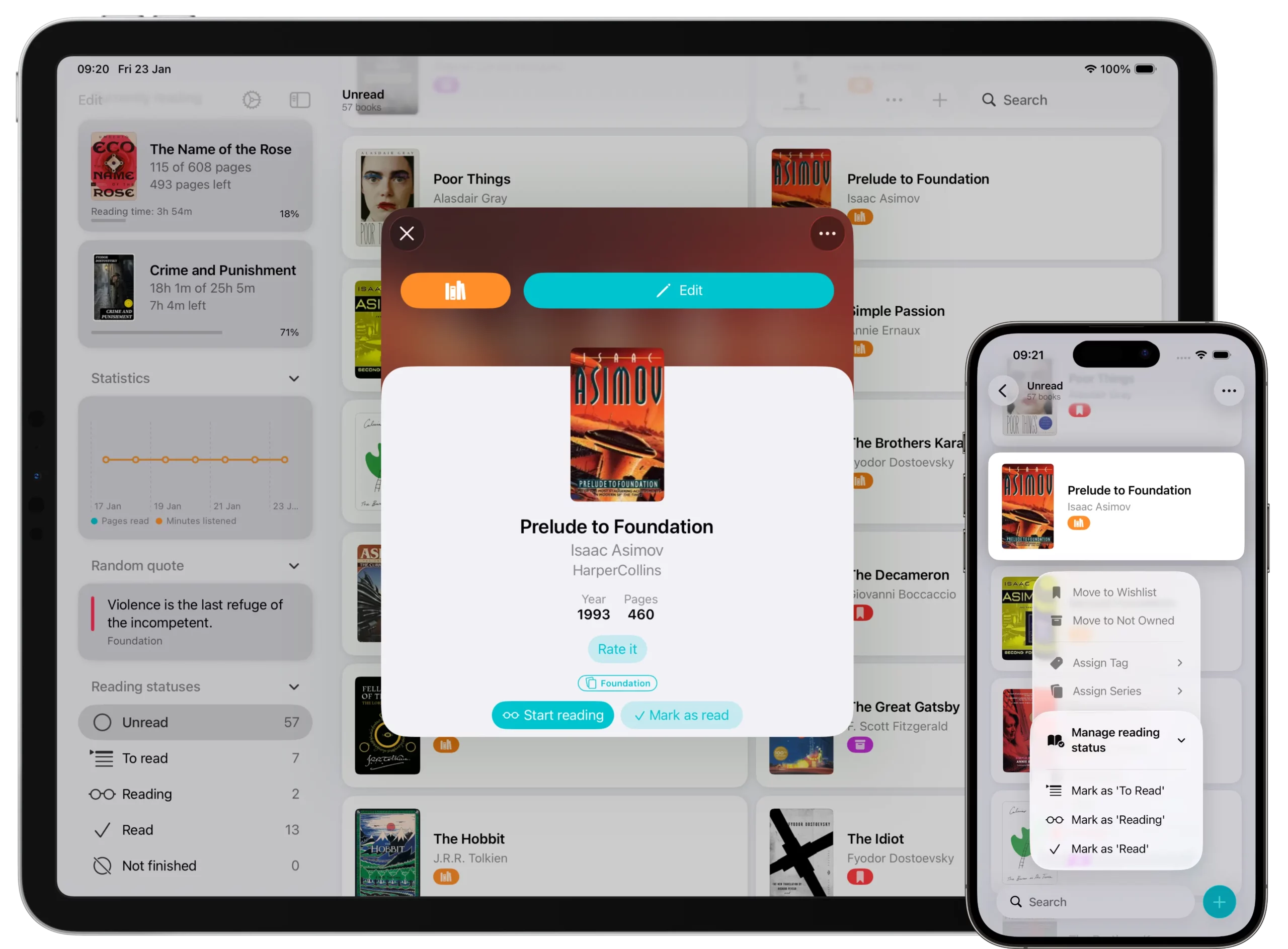
There are several ways to assign or change a Reading Status:
From the book list
- Long press on a book (or right-click on Mac).
- Select Manage Reading Status.
- Choose among: Mark as To Read, Mark as Reading, Mark as Read, or Mark as Abandoned.
From the book detail page (three-dot menu)
- Tap the three-dot button in the top-right corner.
- Select Manage Reading Status to access the same options.
From the book detail page (main buttons)
- If the book has never been read, you’ll see two quick actions under the title and author:
- Mark as Read → creates a Reading Status set to Read.
- Start Reading → creates a Reading Status set to Reading.
When you tap Mark as Read, Book Tracker will open the reading status creation screen with the status already set to Read.
Here you can:
- Optionally set a start date
- Optionally set a finish date
Adding reading dates is strongly recommended if you want the book to appear correctly in your reading statistics.
For books already read
- The book detail page shows a Reading history section, listing all past and current Reading Statuses.
- Tap Show all to expand the list and review your full reading history.
- Tap + in this section to create a new Reading Status (for example, if you’re starting a re-read).
Marking multiple books as read at once
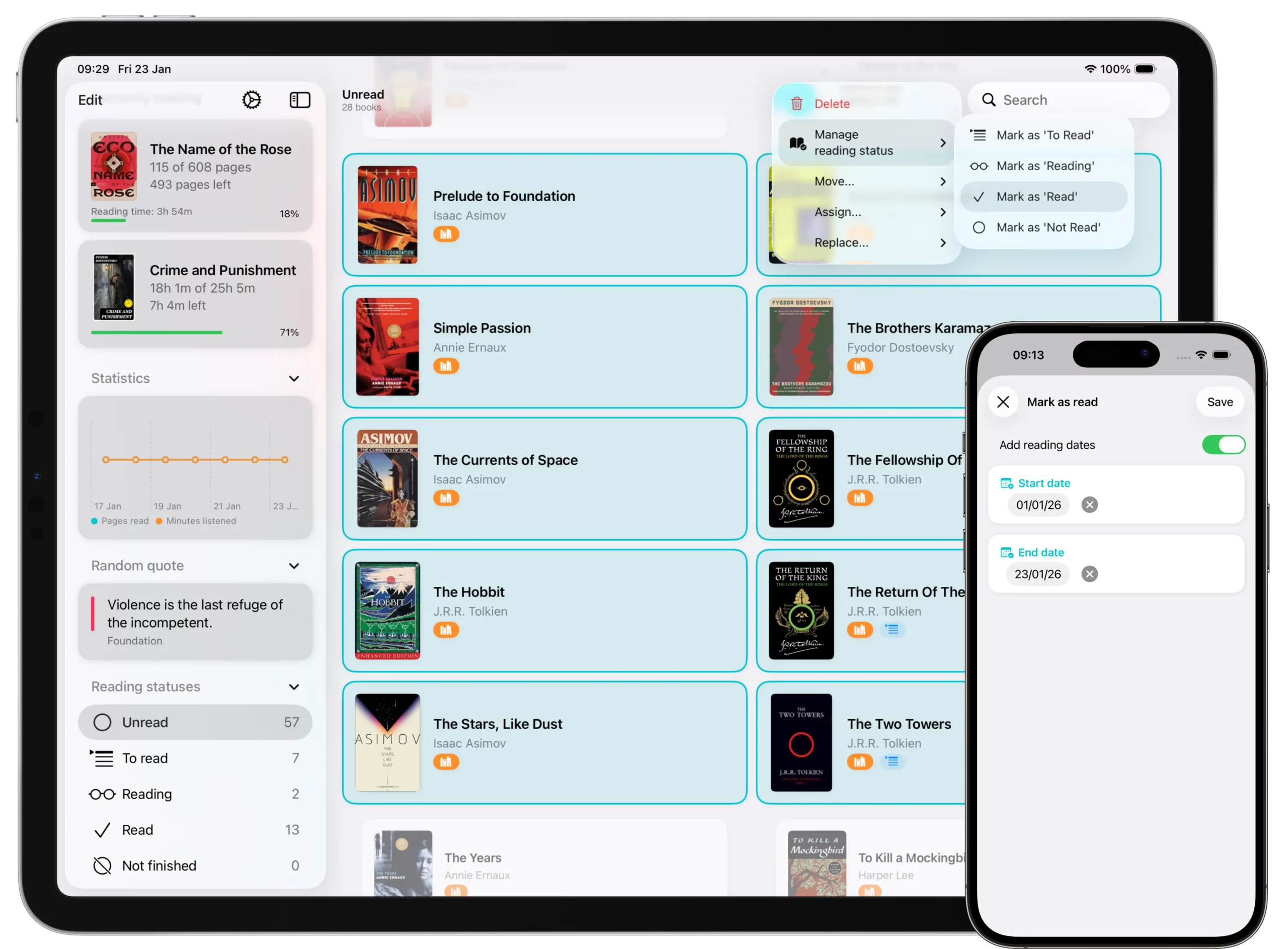
If you want to change the reading status of multiple books at the same time, you can do it quickly from the book list.
- Open the book list.
- Tap the three dots in the top right corner.
- Select Select Books.
- Tap all the books you want to mark as read.
- Tap the three dots again.
- Select Manage Reading Status.
- Tap Mark as Read.
Since multiple books are selected, Book Tracker will ask how you want to proceed:
- You can mark the books as read without assigning any dates, or
- You can choose a start date and finish date for all selected books.
Page Count and Audiobook Length
For reading statistics to be calculated correctly, books should have:
- A page count for physical or digital books, or
- A length for audiobooks
However, when marking many books as read at once (for example dozens or hundreds of books), some books might be missing this information.
In this case:
- You can choose to skip adding this information during reading status creation, or
- If you decide to add it, Book Tracker will show a single screen listing all books that are missing page count or audiobook length.
From this screen, you can easily enter the missing information for each book in one place.
Choosing how to track progress
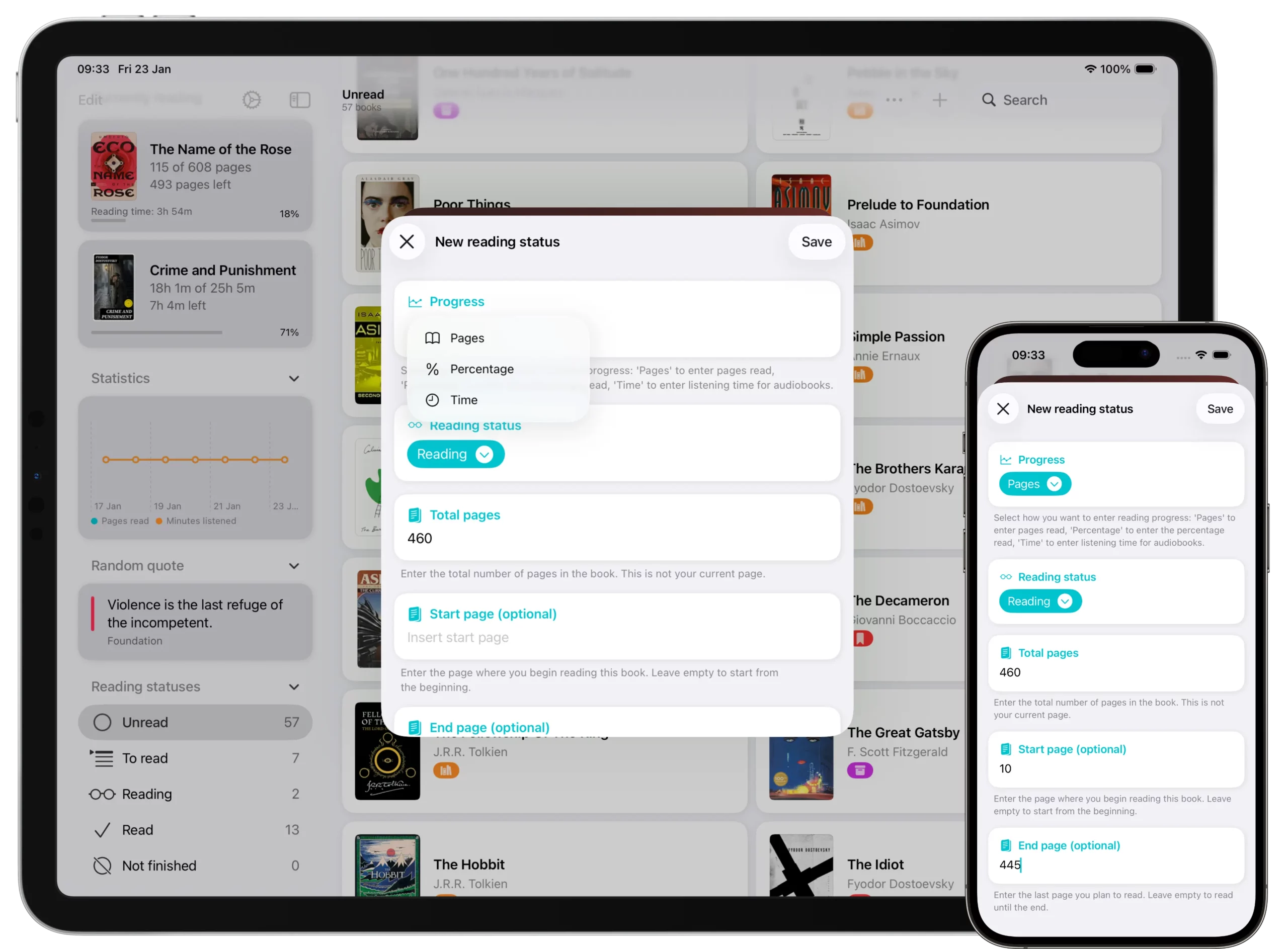
When creating a new Reading Status, you must choose a tracking type:
- Pages → progress is tracked by page numbers.
- Requires entering the total number of pages.
- Optional: add a Start page and End page to exclude introductions or indexes.
- Time → progress is tracked by listening time (ideal for audiobooks).
- Requires entering the total duration of the book in HH:mm format.
- Percentage → progress is tracked by completion percentage.
- Requires entering the total number of pages for accurate statistics.
Book Tracker automatically suggests the most suitable type based on the format of the book (e.g., Time for audiobooks).
Changing the Tracking Type or Book Length
Previously, the tracking type (pages, time, or percentage) could only be chosen when creating a reading status.
This is no longer the case.
You can now change these settings at any time.
- Open the book.
- Open its Reading Status.
- Tap the three dots in the top right corner.
- Choose one of the following options:
- Convert progress – Convert your progress between pages, time, or percentage.
- Edit total length – Edit the total number of pages or audiobook length if it was entered incorrectly.
This makes it easy to fix mistakes without deleting and recreating the reading status.
Tracking progress with the reading timer
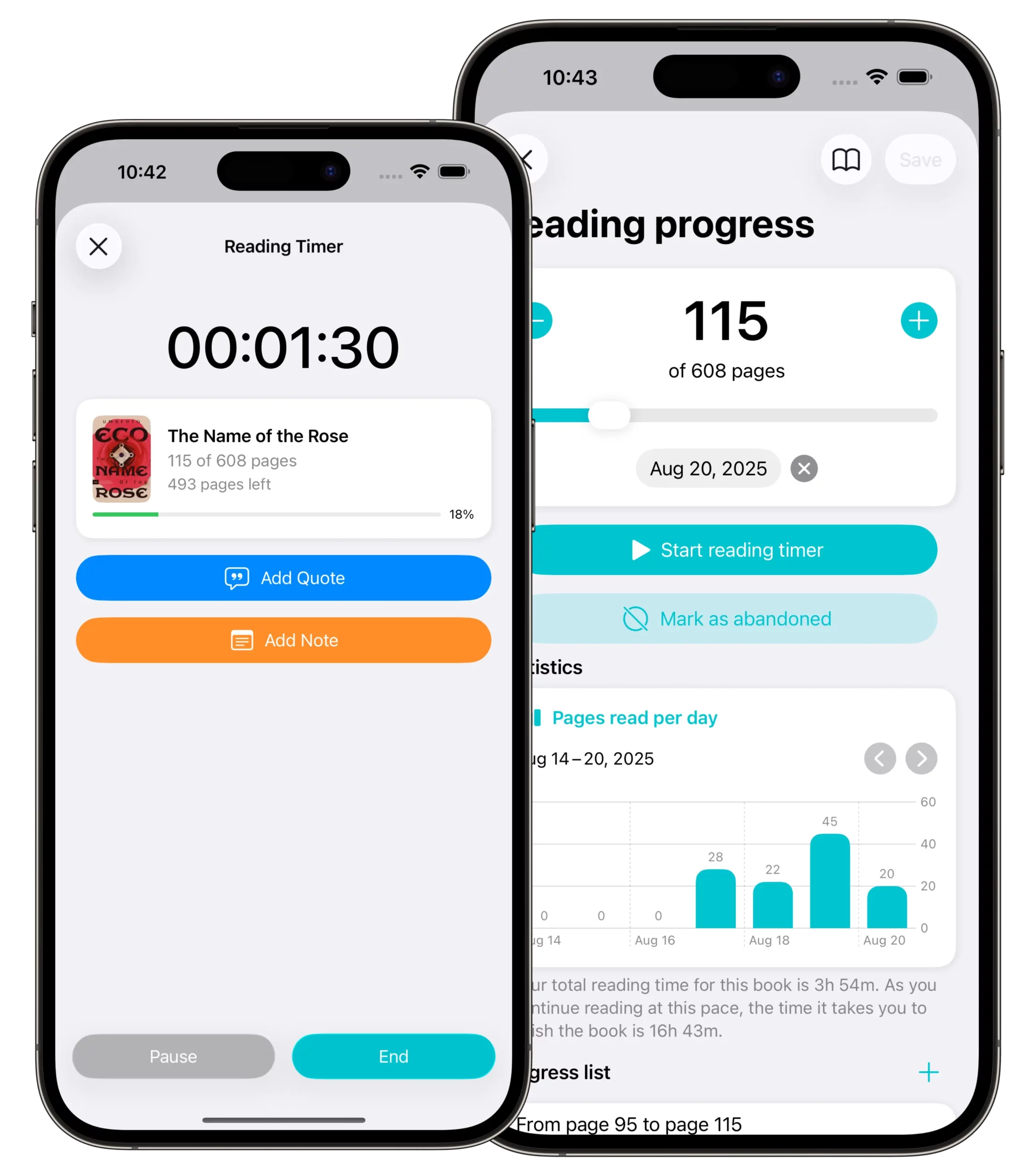
When you use Pages or Percentage as your tracking type, you can also log the time spent reading:
- Automatic timer → start a timer while you read. Book Tracker records both the pages read and the time spent.
- Manual entry → tap the + button in the progress list to add pages read and time spent manually.
If you need to correct a mistake:
- Long press on an existing progress entry → Edit to update pages or time.
Why a finished book might not appear in statistics
If a book you marked as read does not appear in your statistics, the most common reason is missing reading dates. Book Tracker’s statistics are year based. For a book to appear in a specific year:
- A start date and finish date must be set
- The dates must fall within the year you are viewing
If you mark a book as read without adding dates, it will not be included in yearly statistics.
To fix this:
- Open the book.
- Open its reading status.
- Add the correct start and finish dates.
Best practices
- Always check the total number of pages (or audiobook duration) when creating a Reading Status.
- Create multiple Reading Statuses if you re-read the same book → each will be listed in the Reading history section.
- Use Start and End page to exclude introductions or indexes from your statistics.
- Track your reading time with the automatic timer, or log progress manually using the + button.
- Edit a progress entry with a long press if you made a mistake.
Summary
Reading statuses are the foundation of reading tracking in Book Tracker. They help you organize your library, track progress, and generate accurate reading statistics. This flexibility allows Book Tracker to adapt to both casual readers and users with large libraries.