
Book Tracker allows you to keep track of books you do not physically own, including books you have borrowed from someone else and books you have loaned out to friends or family.
This guide explains how to organize these books using the Not Owned section and how to clearly identify borrowed and loaned books.
The Not Owned section
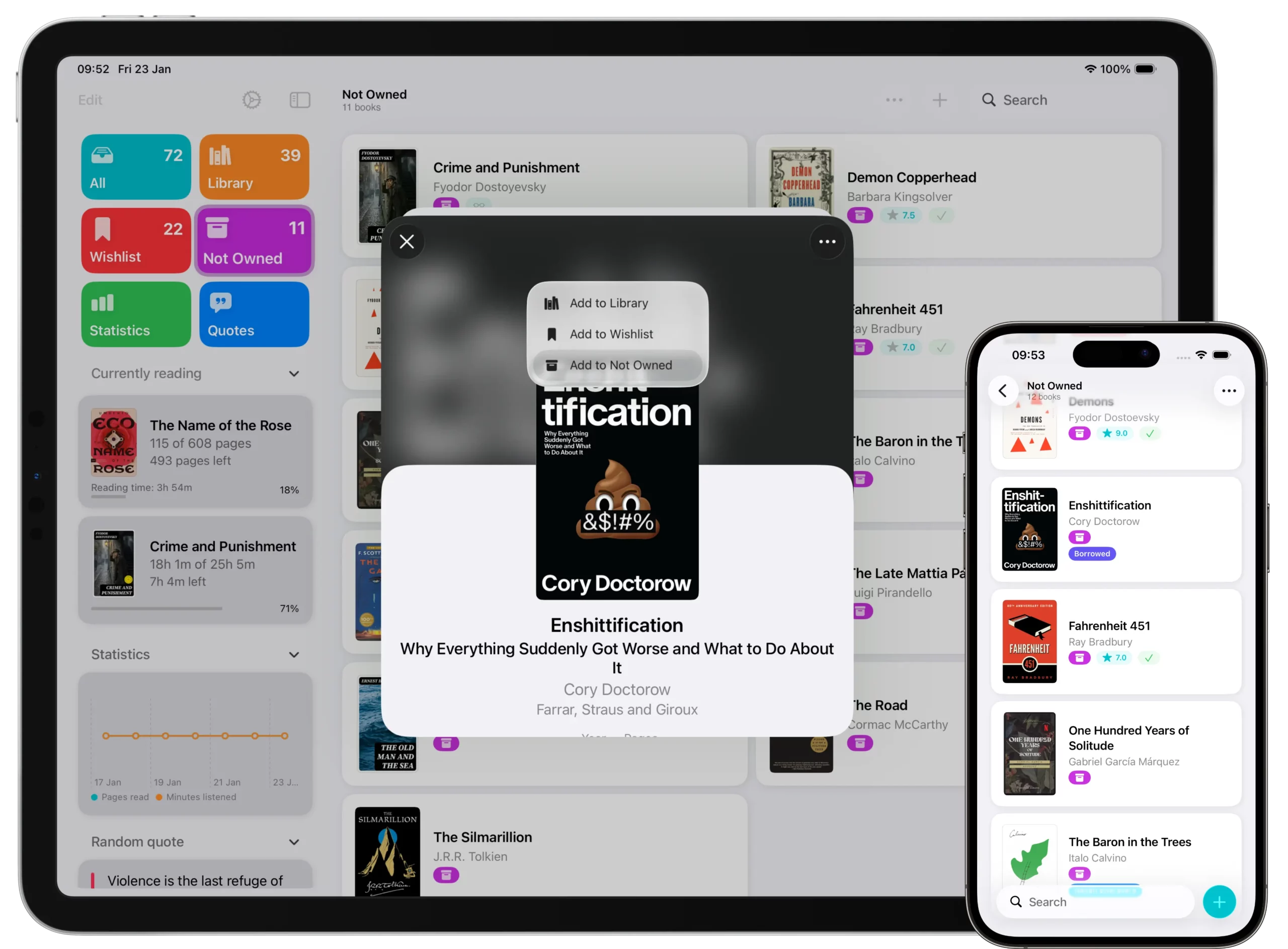
The Not Owned section is designed to collect all books that you do not currently own.
This can include:
- Books you borrowed from someone else
- Books you previously owned but sold or gave away
- Books you own only in digital format and do not want to keep in your physical library
Because this section can contain different types of books, Book Tracker gives you flexible tools to further organize them.
Tracking borrowed books
When you borrow a book, you can add it to the Not Owned section.
To do this:
- Search the book.
- Tap the Add button.
- Select Add to Not Owned.
To clearly identify that the book is borrowed, you can assign a tag to it.
Using Tags for Borrowed Books
Tags are the recommended way to distinguish borrowed books from other not owned books.
For example, you can:
- Create a tag called Borrowed
- Assign this tag to all books you borrowed
This allows you to quickly filter and find all borrowed books, even if the Not Owned section also contains other types of books.
Loaned Out feature
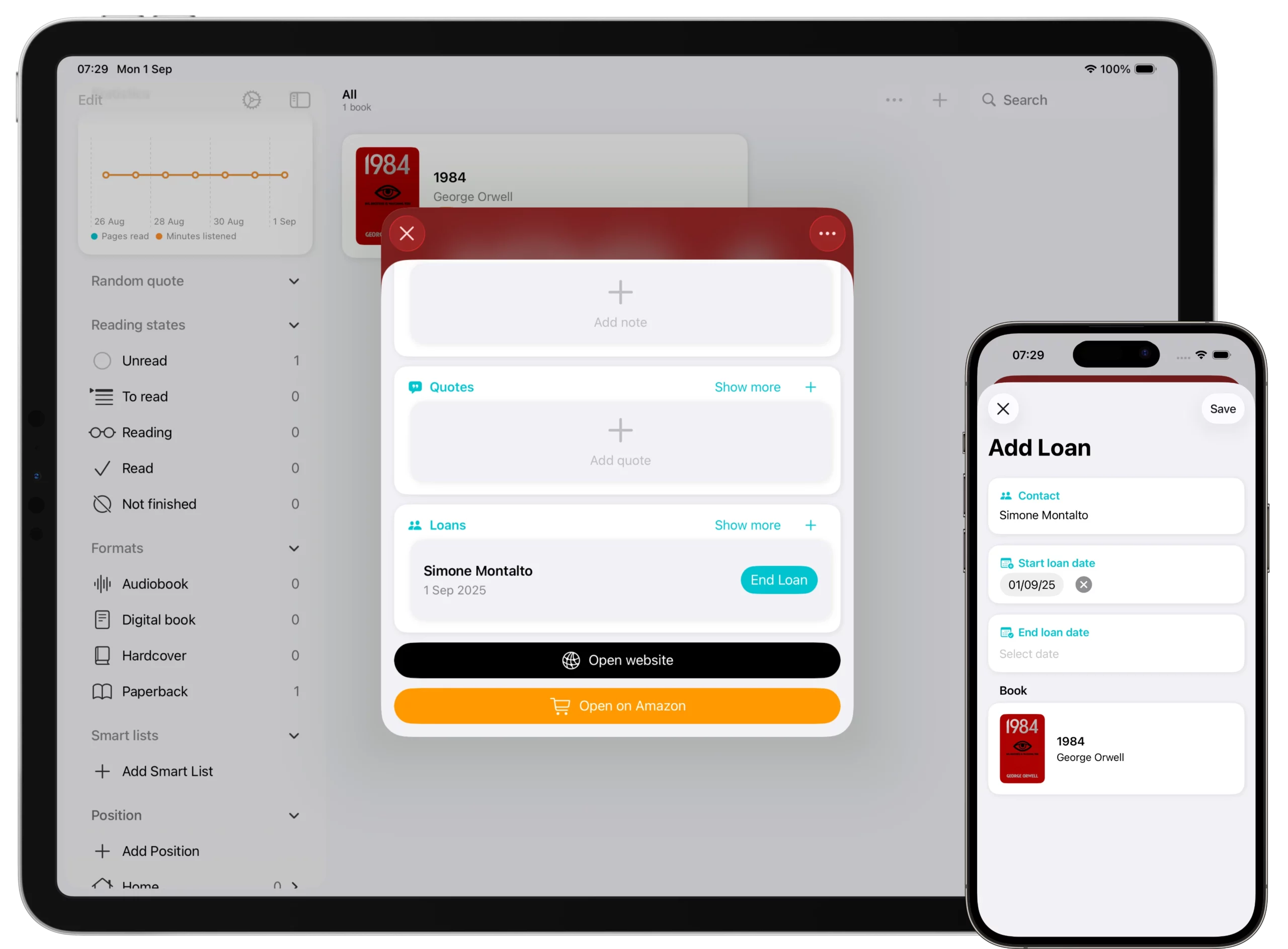
The Loaned Out feature helps you track books you own but have lent to someone else.
How to create a loan
- Open the book detail page of a book you own.
- Scroll down to the Loaned Out section.
- Tap + Add Loan.
- Select the contact to whom you lent the book.
- You can create a new contact if it’s not already in the list.
- Enter the start date of the loan.
- If you only set a start date, the loan is considered active.
- Optionally, add an end date when the book is returned.
Viewing active loans
- On the home page (or the sidebar on iPad and Mac), go to the Loaned Out section.
- You’ll see a list of contacts.
- Tap a contact to view all the books currently loaned to them.
- Only active loans are displayed in this list.
Ending a loan
When the book is returned:
- Open the book detail page.
- Scroll to the Loaned Out section.
- Tap End loan.
- The book will disappear from the active loans list under that contact.
Why these tools are useful
- Not Owned section → lets you track books you don’t own, so your reading stats remain accurate even if you don’t own the book.
- Loaned Out feature → ensures you never lose track of which books you lent, to whom, and since when.
Best practices
- Use the Not Owned section whenever you want to include borrowed books in your reading challenge or statistics.
- Always add a start date when creating a loan, so it’s clear when the book was given out.
- Review the Loaned Out list regularly to check which books are still out and with whom.
- Use the End loan option as soon as a book is returned to keep the list of active loans accurate.
✅ With Borrowed and Loaned Out, Book Tracker helps you maintain a complete record of your reading journey while keeping full control of your library, even when books move in and out of your shelves.