It’s a familiar scene. It’s Christmas morning. You tear the wrapping paper off a rectangular gift, excitingly heavy. You see the cover of a book. You smile politely and say, “Oh, thank you! I’ve heard great things about this!”
Inside your head, however, you are thinking: “I already own this.” Or: “I read this three years ago.” Or worse: “I exclusively read Sci-Fi, why did you buy me a gardening encyclopedia?”
People love buying books for readers, but without guidance, it’s a guessing game. This year, stop the guessing game. Here is how to use Book Tracker to curate the perfect holiday wishlist and—crucially—how to export and share it with your friends and family so you get exactly what you want.
Step 1: Curate Your List (The Fun Part)
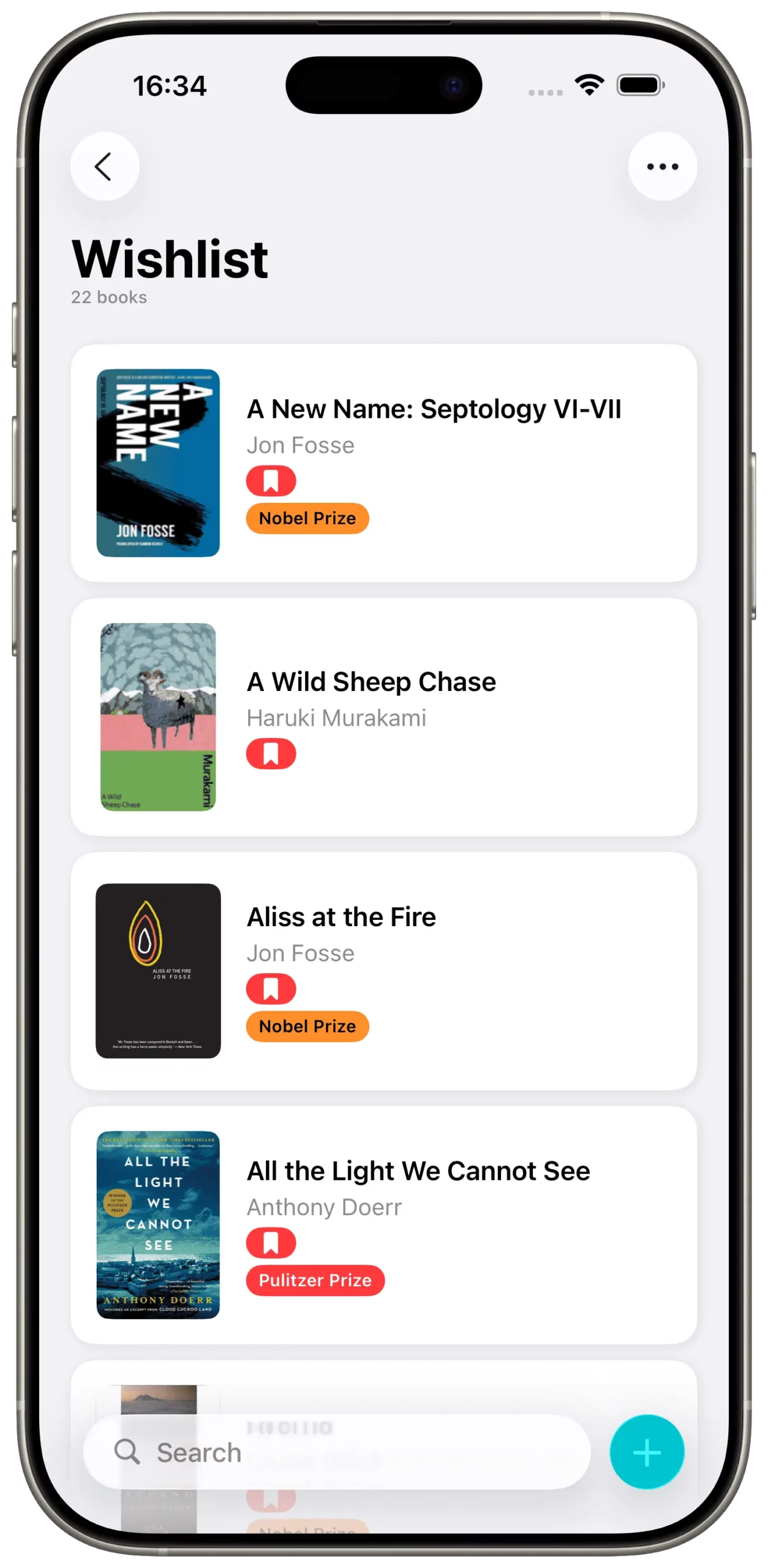
Before you ask for gifts, you need to know what you want. Use Book Tracker as your digital shopping basket.
- At the Bookstore: If you see a book you like while browsing, don’t just take a photo of the cover (which you will lose in your camera roll). Open Book Tracker, scan the barcode, and instantly add it to your wish list.
- Check the Details: Ensure the specific edition is correct. If you collect hardcover editions, make sure the entry in your app reflects that, so your gift-giver knows which version to buy.
Step 2: The “PDF Method” (Sharing Without Complexity)
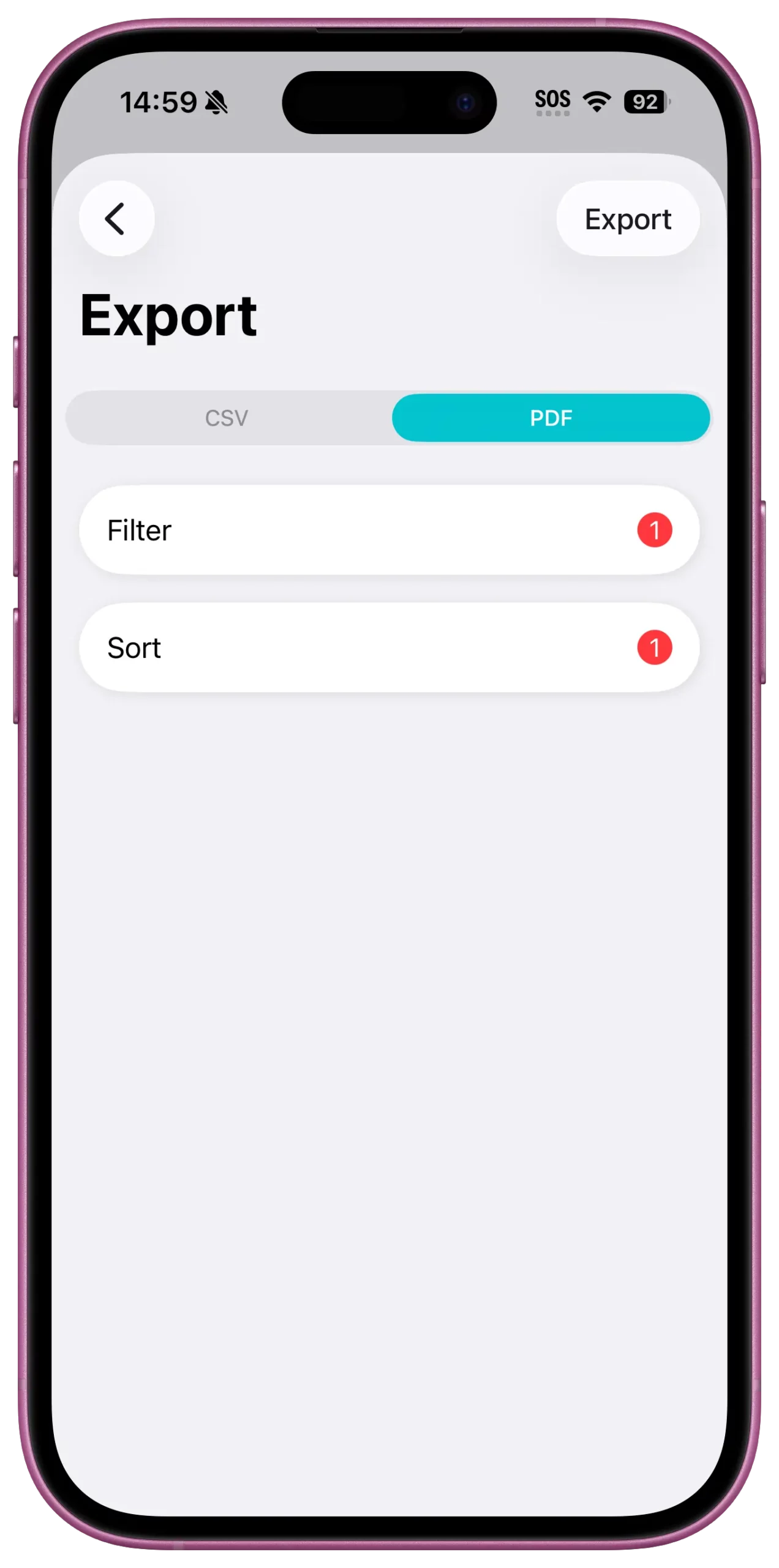
Here is the best part. Unlike other apps that force your friends to download the same app or create an account just to see your list, Book Tracker keeps it simple and universal.
Your friends and family don’t need the app. They just need a list.
How to export your Wishlist:
- Open your Book Tracker app.
- Navigate to the app Settings.
- Tap the Export button.
- Select PDF.
- Apply a filter to have only the books in the wish list.
Why PDF is better: Generating a PDF creates a clean, visual document. It looks like a restaurant menu of books. It shows the title, and the author clearly. It’s professional, easy to read on any phone or computer, and leaves zero room for error.
For the data-nerd friends: If you have a friend who loves spreadsheets, you can also export as CSV. But for Grandma? Stick to the PDF.
Step 3: Distribute Your “Menu”
Now that you have your file, it’s time to send it out. Here are a few strategic ways to share it:
- The Family Group Chat: Drop the PDF into WhatsApp or iMessage with a caption: “If anyone is looking for gift ideas, here is my current reading list! No pressure, just ideas.”
- The Partner Email: Send the file to your significant other. Since the export includes the specific ISBN, they can easily search for the exact book online.
- Secret Santa: If you are using a Secret Santa platform (like Elfster), upload the PDF or screenshot your exported list as your “wishlist image.”
Step 4: The “Thank You” Update
Fast forward to December 26th. You received the books you wanted! Now, open Book Tracker one last time for the year.
- Find the books you received in your Wishlist.
- Change the status from “Wishlist” to “Library”.
- (Optional) Add a Note to the book entry: “Gift from Mom, Christmas 2025.”
This small step helps you track the provenance of your books. Years from now, you’ll look back at that entry and remember exactly who gave it to you.
Summary
Gift-giving should be joyful, not stressful. By providing a clear, exported list from Book Tracker, you are actually doing your friends a favor. You are saving them time and guaranteeing that their gift will be loved, read, and cherished.
Level Up Your Reading Experience with Book Tracker!
Discover the joy of reading like never before. Organize your library, track your progress, and save your favorite quotes. Elevate your reading experience today!