Most “best reading app” guides treat iPhone, iPad, Mac, and Apple Watch as the same thing. They aren’t. In 2026 the gap between an app that simply runs on iOS and an app that lives fully in the Apple ecosystem is the widest it has ever been, and for reading apps specifically that gap shows up in places you consult dozens of times per week: the Home Screen widget you check while waiting for coffee, the Live Activity that keeps your reading session visible without unlocking the phone, the Widget Control that starts a session from the Lock Screen, the Mac sidebar where you triage what to read this weekend, the glance on Apple Watch that tells you how close you are to your annual goal.
This guide explains how a serious reading workflow looks on Apple devices in 2026, the seven native features that matter most, how to combine them into a stack that follows you across all your devices, and how to set it up end to end with Book Tracker. Book Tracker is the only reading app on the App Store that runs natively on iPhone, iPad, Mac, and Apple Watch with full feature parity. It is the canonical example for the workflow described here, so most concrete examples will reference it. The principles apply to any reading app you choose.
Quick answer: the seven Apple-native features that change how you track reading in 2026 are (1) iCloud sync with no account, (2) Home Screen and Lock Screen widgets, (3) Live Activity for active reading sessions, (4) iOS 18 Controls for one-tap actions from Control Center or Lock Screen, (5) a real Apple Watch app, (6) a real Mac app that is not a Catalyst port, and (7) Siri Shortcuts plus App Intents for automation. Book Tracker is currently the only reading app that offers all seven with full feature parity across iPhone, iPad, Mac, and Apple Watch.
What you’ll find in this guide
- Why “reading on Apple devices” is its own category in 2026
- The 7 Apple-native features that change how you track reading
- The reading session, redesigned for 2026
- The Year in Review: Spotify Wrapped for books
- How to set up a complete Apple-native reading stack
- A reader’s full week, device by device
- FAQ
1. Why “reading on Apple devices” is its own category in 2026
For most of the App Store’s history, “iOS reading app” was a category defined by a phone screen and a list of books. The differences between apps were design choices and feature lists. Apple platforms were a deployment target, not a strategy.
That changed gradually starting around iOS 14 in 2020 (the year widgets shipped), accelerated with iOS 16’s Live Activities in 2022, and reached a tipping point with Widget Controls and App Intents in 2024. Today an Apple user with an iPhone, an iPad, a Mac, and an Apple Watch lives inside a tightly choreographed ecosystem where the same data, the same focus, the same notification can move across devices instantly. Reading apps that ignore this end up feeling stuck in 2017.
The gap is most visible when you look at three things:
The physical context of reading has fragmented. You read paperbacks in bed, ebooks on commutes, audiobooks while running. A 2026 reading tracker needs to follow your activity across these contexts without forcing you to log everything by hand.
The device context has multiplied. You start a reading session on iPhone, glance at progress on Apple Watch, jump to your TBR on iPad in bed, edit your library on Mac while organizing the bookshelf. If your app does not sync seamlessly across all four, friction wins.
The interface context has gotten richer. Lock Screen widgets, Live Activities, Controls, Shortcuts, Spotlight integration. These are not “extras”; they are the new surface area where reading data lives. An app that ignores them is invisible most of the day.
For a parallel guide on how to choose the right tracker app in general (not just Apple-specific), see Finding the Best Reading Tracker App for Your Goals in 2026. For the cataloging side of the same question see The Best App to Catalog Books in 2026: Why Metadata Matters.
2. The 7 Apple-native features that change how you track reading
Feature 1. iCloud sync with no account
Most reading apps require an account, then store your data on their servers, then sync via a proprietary cloud. This is a triple penalty: an account you have to maintain, a server you have to trust, and a sync pipeline that is slower and less reliable than Apple’s native one.
The Apple-native alternative is iCloud sync with no account. The app uses your existing iCloud account (the one you already trust enough to keep your photos and messages), end-to-end encrypted by Apple, no developer server in the middle. You install the app on a new device, log into iCloud (which you would do anyway), and your library appears.
Book Tracker uses this approach. See the FAQ How do I sync Book Tracker across iPhone, iPad, and Mac? and the tutorial How to sync Book Tracker across iPhone, iPad, and Mac. The companion FAQ Do I need an account to use Book Tracker? and the Manifesto explain the philosophy.
Feature 2. Home Screen and Lock Screen widgets
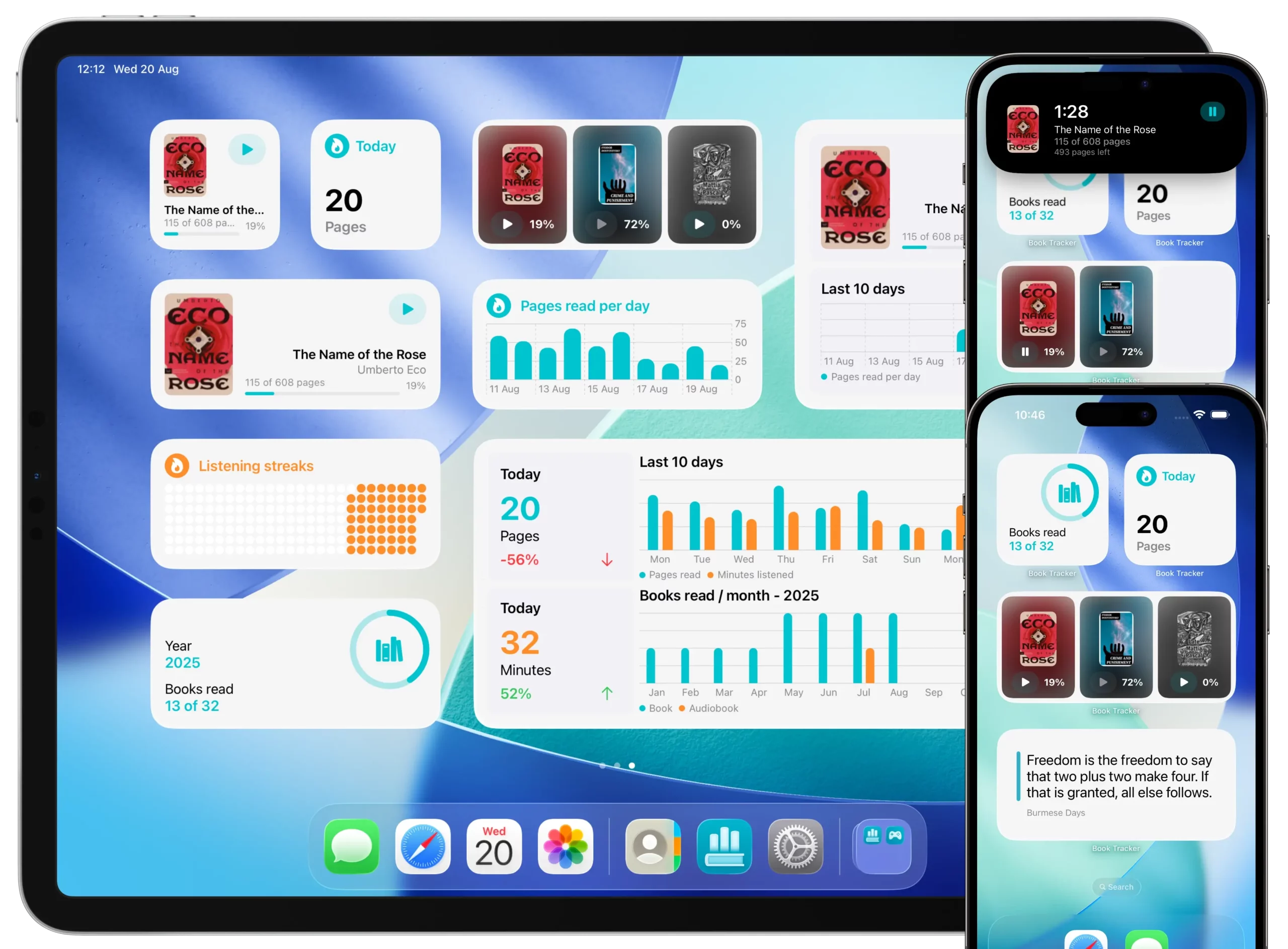
A widget is the difference between “I need to open the app to know X” and “X is just there when I glance”. For a reading tracker the right widgets answer four questions instantly:
What am I currently reading? A widget with the cover, title, and progress bar.
What is one quote I want to keep in mind? A widget that rotates through your saved highlights.
Where am I on my reading challenge? A widget with the year progress.
How am I doing this week? A widget with daily reading minutes or pages.
Book Tracker offers seven widget types covering all of these. The full setup walkthrough is in the tutorial How to customize your app with Widgets.
Feature 3. Live Activity for active reading sessions
Live Activity is the iOS 16+ feature that lets an app keep useful information on your Lock Screen and in the Dynamic Island while a task is in progress. The textbook examples are food delivery and sports scores. For reading, it means starting a reading session and keeping its timer visible on your Lock Screen without unlocking the phone.
This matters more than it sounds. The reason most readers fail to track sessions accurately is friction: unlocking, opening the app, finding the right book, tapping start. Live Activity collapses the same workflow into one tap with persistent feedback. The session becomes a glanceable object, like a workout in progress.
Book Tracker has Live Activity for reading sessions. See the tutorial How to use Live Activity with the Reading Timer.
Feature 4. Widget Controls
iOS 18 introduced Controls, a new kind of UI primitive: small one-tap actions you can place in Control Center, on your Lock Screen, or assigned to the Action Button. They are essentially super-shortcuts that live one swipe away at all times.
For a reading tracker, Controls turn the most common actions into single taps without opening the app:
Start a reading session. Open the barcode scanner. Jump to your wishlist. Open your current series. Jump to a specific tag or shelf.
Book Tracker ships with more than 18 Controls covering these flows. The list includes ReadingTimerToggle, OpenBarcodeScanControl, OpenReadingBookControl, OpenSearchOnlineControl, plus dedicated Controls to jump straight to Authors, Bookcases, Categories, Filters, Illustrators, Lists, Locations, Narrators, Publishers, Series, Shelves, Tags, and Translators.
For the broader Apple ecosystem context see How Book Tracker integrates with iOS and macOS features.
Feature 5. A real Apple Watch app
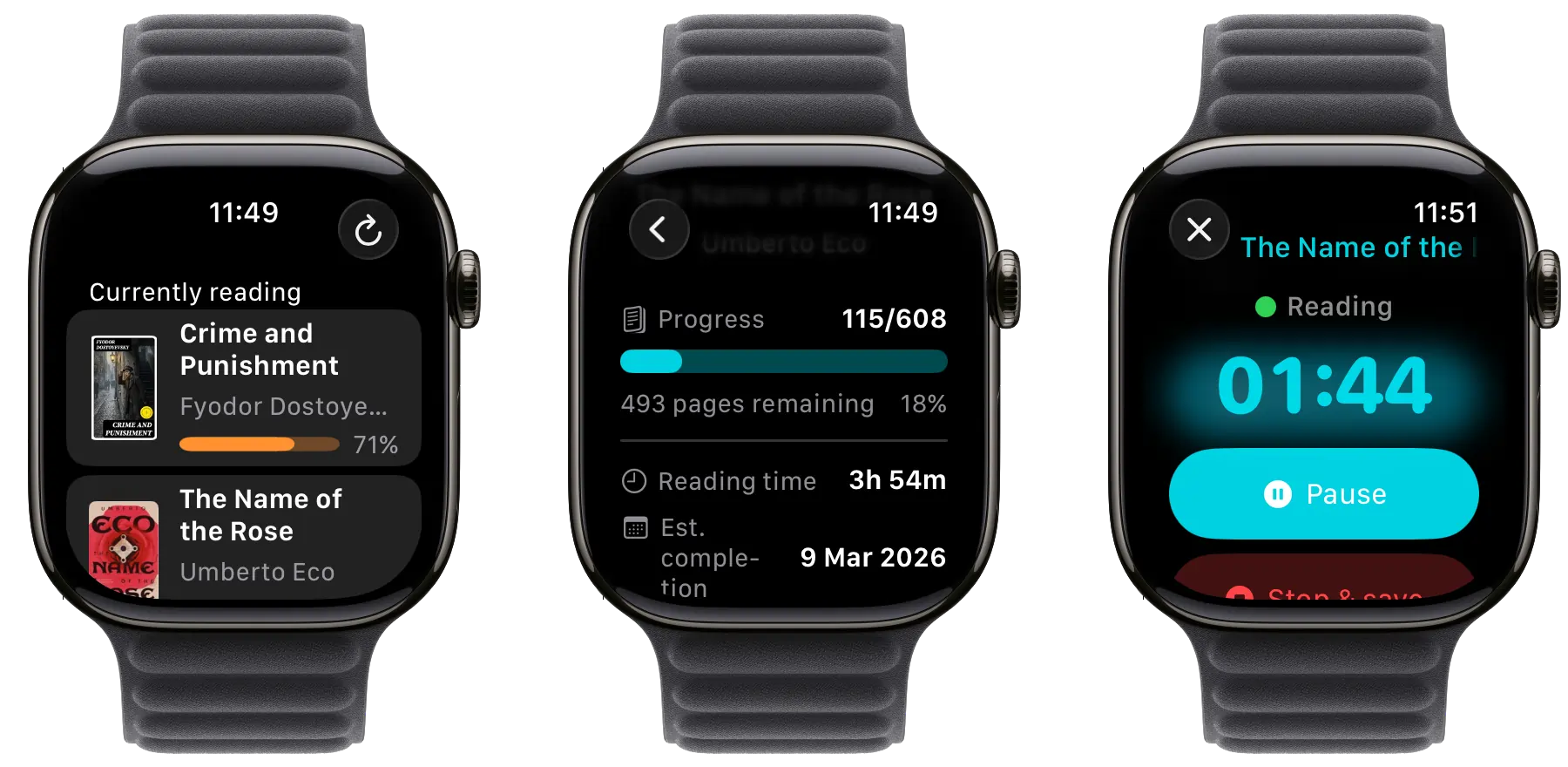
Most reading apps do not have an Apple Watch app. Most that do have a watch app it is a smart notification, not a real app: a screen with the cover of your current book and nothing more.
A useful Watch app for reading does three specific things:
Starts and stops a reading session from your wrist, useful when your phone is across the room (which is exactly when you want to read without distraction).
Shows your currently reading list at a glance, useful when you walk past a bookcase and ask yourself “what was I in the middle of?”.
Surfaces the active reading session as a complication on your watch face, so the timer is visible while you read.
Book Tracker has a dedicated Apple Watch app with all three. For the full walkthrough see the companion post Reading on Apple Watch: A Complete Guide for Bookworms.
Feature 6. A real Mac app
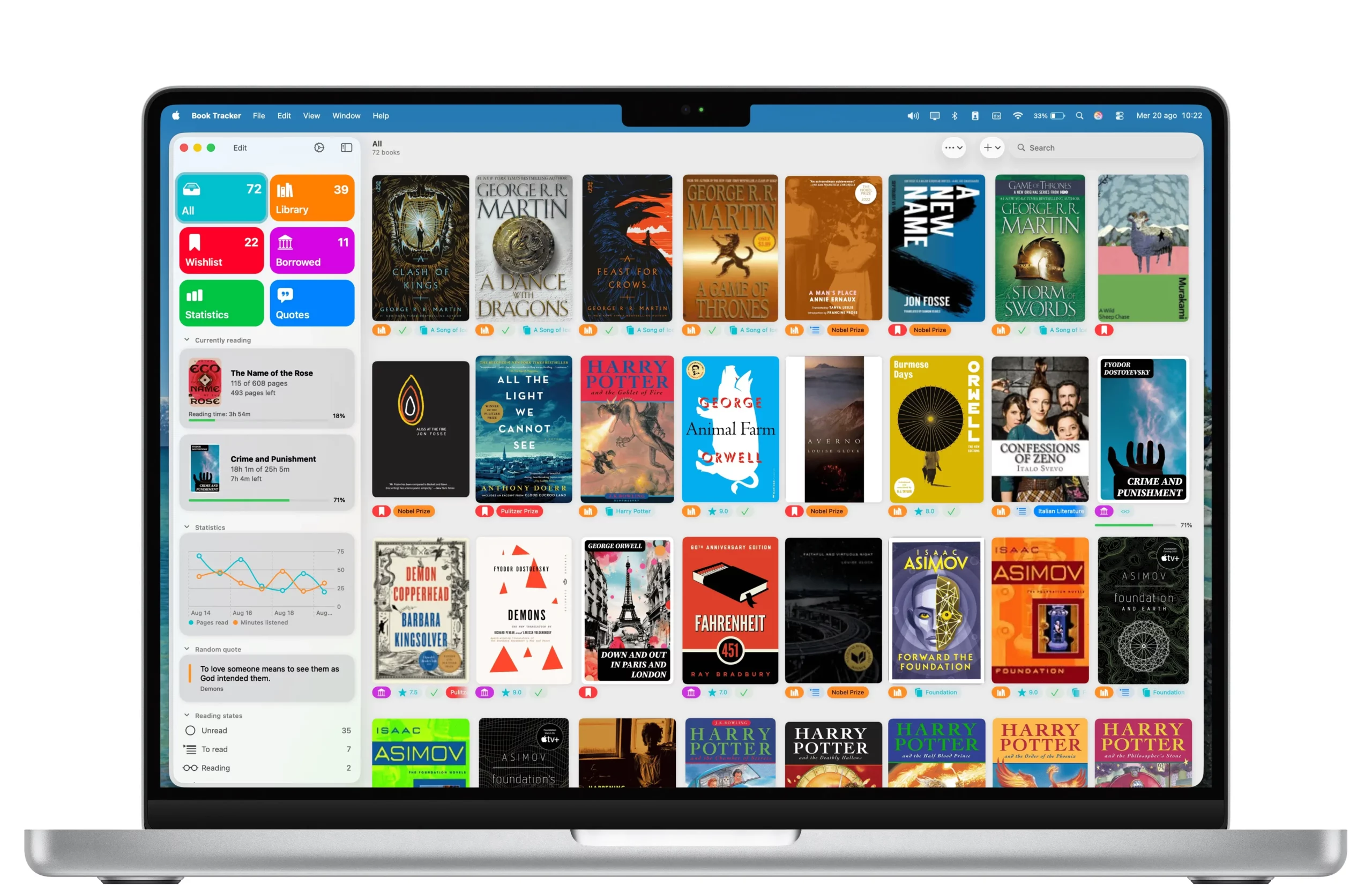
A surprising number of “Mac apps” in the App Store are iPad apps recompiled with minimal changes. They work, but they feel wrong on macOS: no proper menu bar, no keyboard shortcuts beyond the basics, no drag-and-drop, no multi-window support, no native macOS conventions.
A real Mac reading app does the obvious things:
Native sidebar with sources (All Books, Library, Wishlist, Read, Reading, plus your custom Smart Lists and Bookcases).
Full keyboard support.
Drag-and-drop for bulk operations (assigning tags, moving books between shelves).
Spotlight integration so your library is searchable system-wide.
Native menu bar with proper File / Edit / View / Window / Help menus and standard macOS keyboard shortcuts.
Book Tracker for Mac is a real Mac app, separately released on the Mac App Store (Download Book Tracker for Mac). It shares iCloud sync with the iPhone version but offers a layout designed specifically for macOS.
Feature 7. Siri Shortcuts and App Intents
If you want reading to be a stable part of your daily routine, automation helps. Siri Shortcuts and App Intents let you script the actions you do most often:
“Hey Siri, start my reading session” without opening the app.
A Shortcut that triggers Focus mode, dims the lights via HomeKit, and starts a reading session, all from one tap.
A morning Shortcut that shows you your wishlist and your reading challenge progress.
A Shortcut that, when you scan a barcode in the Camera app, asks if you want to add the book to your wishlist.
Book Tracker has full App Intents support with both Siri Shortcuts and the modern App Intents API used by Spotlight, Shortcuts, and automation throughout the system. See the tutorial How to use Book Tracker with Shortcuts and Siri.
3. The reading session, redesigned for 2026
The reading session is the smallest unit of reading data and the most underused. Most apps treat it as an optional log: tap start, tap stop, see the duration. The Apple-native version is much richer.
A 2026 reading session has four components running in parallel:
A timer that starts when you tap start. Persists if the app closes. Persists across device boundaries via iCloud.
A Live Activity on the Lock Screen and Dynamic Island so you can glance at elapsed time without unlocking the phone.
A complication on the Apple Watch face so the same timer is visible on your wrist while you read.
A shortcut entry point so you can start the session by voice (“Hey Siri, start reading”) or by Control Center tap, without opening the app at all.
When you combine the four, the reading session stops being a chore you forget and becomes a glanceable, ambient object. The friction drops to near-zero, and as a result you actually log sessions, which means your statistics start to mean something.
The mechanics in Book Tracker are documented in the tutorial How to track detailed reading progress with pages, time, or percentage.
4. The Year in Review: Spotify Wrapped for books
Spotify Wrapped is one of the most successful product features of the last decade because it does something very simple: it takes a year of behavior you barely noticed and turns it into a story you want to share. Reading deserves the same treatment.
A real Year in Review for reading shows you:
The number of books finished, broken down by month and by genre.
The cumulative pages read and hours spent reading, with the inevitable comparison to last year.
Your “longest streak” of consecutive reading days.
Your most-read author and most-read series.
The book you took longest to finish and the one that flew by.
The format split (paperback, hardcover, ebook, audiobook).
A shareable summary card that captures all of it.
Book Tracker has a dedicated Year in Review feature. The way it works and the cultural moment it taps into is covered in More Than Music: How to Get Your Own Spotify Wrapped for Books.
The deeper point is that you only get a great Year in Review if you have great underlying data. And you only have great underlying data if logging is frictionless. Which brings us back to widgets, Live Activity, Controls, and Watch.
5. How to set up a complete Apple-native reading stack with Book Tracker
This is the practical setup. Twenty minutes of work, then it runs forever.
On iPhone
- Install Book Tracker from the App Store.
- Skip the account screen (there isn’t one). Confirm iCloud sync is on.
- Add your first book with the barcode scanner. See How to add a new book in Book Tracker.
- Set your Reading Challenge for the year. See How to set and follow your Yearly Reading Challenge.
- Long-press on your Home Screen. Add the Currently Reading widget (medium size) and the Reading Challenge widget (small or medium). See How to customize your app with Widgets for all seven widget types and the right placement for each.
- Open Control Center. Edit. Add the Reading Timer Toggle Control and the Open Barcode Scanner Control. Now they are one swipe away.
- (Optional) If you have an Action Button (iPhone 15 Pro and later), assign it to the Reading Timer Toggle Control. Now reading is one button press away.
On iPad
- Install Book Tracker from the same App Store account. Your library appears via iCloud, no re-import needed.
- The iPad version uses a real sidebar layout (not a stretched iPhone view). Customize the sidebar to your reading workflow. See How to customize the Home on iPhone and the Sidebar on iPad and Mac.
- Add the same widgets to the iPad Home Screen, larger sizes for the bigger screen.
On Mac
- Install Book Tracker from the Mac App Store. Note: iOS and Mac are separate purchases, see the FAQ Why do I need to buy Book Tracker separately on iOS and Mac?.
- Sign in with the same iCloud account. Library appears.
- Customize the sidebar with your Smart Lists.
- Use the Mac to do the heavy organizational work: bulk-edit tags, set up Locations and Bookcases, manage Series order. This kind of work is much faster with a keyboard. See How to use Bulk Edit in Book Tracker.
On Apple Watch
- The Watch app installs automatically when you install Book Tracker on the paired iPhone.
- Open the Watch app on your iPhone (Apple’s app) and confirm Book Tracker is installed on the Watch.
- On your Watch, open Book Tracker. Add a complication to your favorite watch face: the active reading session timer is the most useful.
- Now you can start and stop sessions, see your currently reading list, and glance at progress directly on your wrist.
For the full Watch walkthrough see Reading on Apple Watch: A Complete Guide for Bookworms.
Across all devices: automation
- Open the Shortcuts app on iPhone or Mac.
- Create a Shortcut named “Reading time” that:
- Turns on Focus mode (Reading or Do Not Disturb)
- Starts a Book Tracker reading session for your currently reading book
- (Optional) Dims HomeKit lights or plays ambient sound
- Add the Shortcut to your Home Screen, your Watch face, or trigger it by saying “Hey Siri, reading time”.
See How to use Book Tracker with Shortcuts and Siri for the full setup.
6. A reader’s full week, device by device
Here is what the Apple-native reading workflow looks like across a typical week. Everything below works with Book Tracker today, no plugins, no scripting, no third-party automation.
Monday morning. You wake up, check your Lock Screen, see the Currently Reading widget showing the book you started Sunday night, 23% in. You also see your Reading Challenge widget, 31 books read of 60, on pace for the goal. You feel good.
Tuesday lunch. You finish a chapter at the office. You tap the Reading Timer Control from the Action Button on your iPhone, stopping the session. The Live Activity disappears. The session is logged automatically with start time, end time, and duration. You did not have to open the app.
Wednesday evening. You finish the book. You open Book Tracker on your iPhone, mark it as Read. Two seconds later the same change shows on your iPad on the kitchen counter (iCloud). Your Reading Challenge widget ticks up: 32 of 60. You add a quote you loved by snapping a photo of the page (OCR captures the text automatically).
Thursday morning. You walk past a used-book sale and grab three books. You open Book Tracker on your iPhone, tap the Scanner Control from Control Center, scan all three back-to-back in bulk mode. All three are in your library in 90 seconds, with full metadata, before you have left the shop.
Friday afternoon. You are on the bus going home. You glance at your Apple Watch. The currently reading screen shows you have a chapter unread of the new book. You tap “Start session” on the Watch. The timer starts on iPhone and Watch simultaneously. You read for 20 minutes. The session logs itself when you arrive home and the timer stops.
Saturday. You are at your Mac organizing the physical bookshelf. You move ten books from the “Living Room” location to “Study”. You do this with bulk edit and the keyboard, taking 30 seconds. On iPhone and iPad, the change appears immediately.
Sunday evening. You set up next week’s reading. You open the Mac app, sort the wishlist, drag two titles to Currently Reading. You add a Smart List rule: “Sci-fi novels under 300 pages in my Wishlist”. You browse the result, pick one as your bus book for next week.
This is what tracking reading looks like when the app actually inhabits the Apple ecosystem instead of just running on it.
7. FAQ
Q: Is there a reading tracker app that runs natively on iPhone, iPad, Mac, and Apple Watch?
Yes, Book Tracker. It is currently the only reading tracker on the App Store that runs natively on all four Apple platforms with feature parity. Sync happens via iCloud with no account.
Q: Which widgets does a good reading tracker app offer in 2026?
A complete set covers four needs: currently reading (cover plus progress), quote of the day, reading challenge progress, and reading statistics. Book Tracker offers seven widget types covering all of these.
Q: Can I start a reading session from the Lock Screen or Apple Watch without opening the app?
Yes if your app supports Widget Controls or has a Watch app. Book Tracker supports both: a Reading Timer Toggle Control for iPhone Lock Screen and Control Center, and a dedicated Watch app for wrist-based session start.
Q: Does Book Tracker work with Siri?
Yes. Book Tracker has full Siri Shortcuts and App Intents support. You can build Shortcuts that start sessions, scan books, surface your currently reading list, and chain other automations.
Q: Does the Mac app cost extra if I bought it on iPhone?
Yes. The iOS app and the Mac app are separate purchases on the App Store. The FAQ Why do I need to buy Book Tracker separately on iOS and Mac? explains the reasoning. Your library syncs across both via iCloud regardless.
Q: Does the Year in Review work if I only started tracking mid-year?
Yes, but it will reflect only the period you tracked. To get a full year of data, the simplest path is to import your historical reading from another app at the start (Goodreads, StoryGraph, BookBuddy, and others are all supported, see Migrating to Book Tracker).
Q: I have iPhone but no iPad, Mac, or Watch. Is Book Tracker still worth it?
Yes. The iPhone experience alone is complete: cataloging, reading sessions, widgets, Live Activity, Controls, Shortcuts, Year in Review. The other devices add convenience but the iPhone version is not crippled without them.
Q: What happens to my reading data if I stop using the app?
It stays in your iCloud and on your device, and you can export the entire library to CSV at any time. See the FAQ Can I export my library from Book Tracker? and the tutorial How to export your library from Book Tracker. This is part of the privacy-first posture, see Where your data is stored.
Verdict
The Apple ecosystem has spent the last six years building the infrastructure for ambient, multi-device, low-friction reading. Most book apps have not caught up. The ones that have, treat reading as something that lives across your day and your devices instead of something you have to remember to log.
If you use Apple devices and you read regularly, the right reading tracker is the one that meets you where you already are: on your wrist when you start a session, on your Lock Screen while you read, on your Mac when you organize, on your iPad in bed, and in your private iCloud where your data stays yours.
That app today is Book Tracker.
Download Book Tracker on the App Store (iPhone + iPad + Apple Watch) or on the Mac App Store (Mac).
Continue reading:
- Reading on Apple Watch: A Complete Guide for Bookworms
- The Best App to Catalog Books in 2026: Why Metadata Matters
- Finding the Best Reading Tracker App for Your Goals in 2026
- More Than Music: How to Get Your Own Spotify Wrapped for Books
- Bookly vs Book Tracker: Do You Need a Coach or a Librarian?
- Margins vs Book Tracker: Which Reading App Fits Your Library?
- Best Goodreads Alternatives for iPhone in 2026 (Privacy-First)
- Book Tracker Tutorial and FAQ
Start tracking your library today.