
Adding books is the essential first step to building your personalized digital library in Book Tracker.
The app offers four flexible and accurate methods for adding your titles, making the process easy whether you prefer searching online, scanning barcodes, or entering data manually.
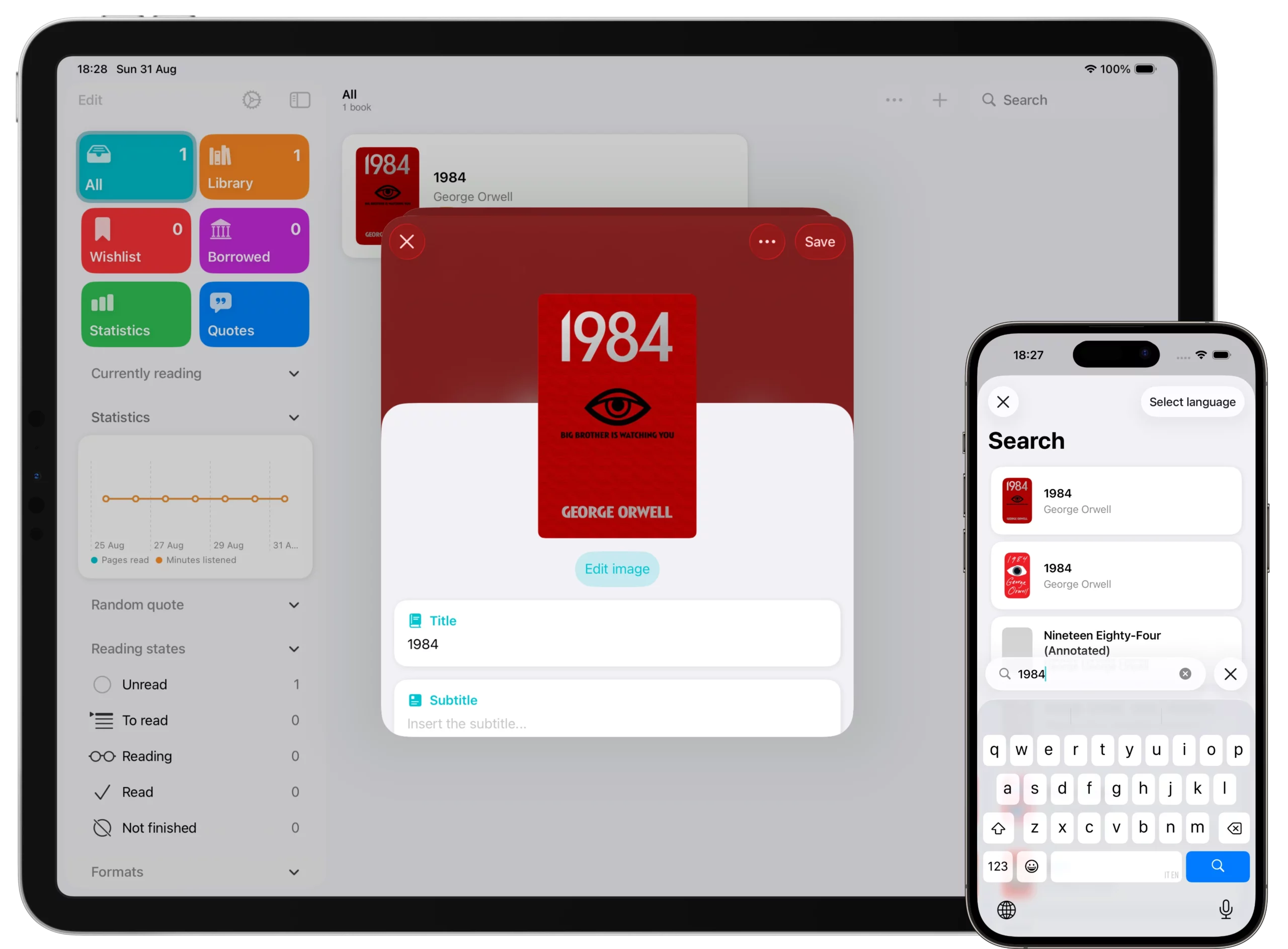
1. Search Online: Title or ISBN
This is the most common method for adding titles available in public databases.
- Tap the
+button on the Home screen or in any book list. - Select
Search online. - Type the book’s title or its ISBN.
📌 Important Note on Author Search: Currently, the online search does not support entering the author’s name alone to retrieve all their books. For optimal and specific results, it is recommended to enter the book’s title or, alternatively, the title followed by the author’s name (e.g., “The Name of the Rose Umberto Eco”). Using the ISBN always ensures the most accurate match, including metadata and cover art.
- Choose the correct result from the search list and add it to your library.
2. Scan Barcode (Using Camera)
Use your device’s camera to add books instantly.
- Tap the
+ button. - Choose
Scan barcode (camera). - Use your iPhone or iPad’s camera to scan the barcode.
- Book Tracker will automatically retrieve the book details and cover.
3. Scan Barcode (Using External Reader)
If you need to quickly catalog a large number of volumes, support for external readers is the fastest solution.
💡 Barcode Reader Compatibility: The Book Tracker app natively supports Bluetooth barcode readers. You can pair your Bluetooth reader with iPhone, iPad, and Mac devices.
- Pair your Bluetooth scanner via the iOS and macOS
Settings > Bluetooth. - In Book Tracker, tap
+and selectScan barcode (reader). - Scan barcodes directly with the reader for high-speed entry, perfect for building large libraries quickly.
4. Manually Insert
This method is useful for rare, out-of-print, or vintage books that are not available in online databases.
- Tap the
+ button. - Choose
Manually insert. - Fill in the book’s details: title, author, publisher, genre, page count, etc.
- You can also upload a cover manually from your photo library.
Editing Book Details
After adding a book, you can always refine or correct its information (metadata).
- Open the book detail page.
- Tap the
Editbutton at the top. - Update any field (description, format, page count, etc.).
Tips for Efficient Book Adding
- Speed: If you have a large collection, the Bluetooth barcode reader is the fastest method available.
- Accuracy: Prefer ISBN-based searches for the most accurate metadata and cover art.
- Rare Books: Manual entry is often the only option for vintage or out-of-print editions.
With these powerful tools, you can quickly and accurately build and personalize your digital library in Book Tracker.