
Book Tracker helps you keep your digital library organized in the same way you manage your physical one. This is done through Positions, a system that groups books into Location, Bookcase, and Shelf.
With Positions, you can replicate the structure of your real library, whether it’s spread across different rooms, bookcases, or even multiple homes.
What are Positions?
A Position in Book Tracker is a hierarchical structure made of:
- Location → the top level, e.g., Home, Office, Summer house, Public library.
- Bookcase (optional) → the specific bookcase within a location.
- Shelf (optional) → the shelf within a bookcase where the book is placed.
You can choose to use only Location, or add Bookcase and Shelf for more detail.
How to assign a Position to a book
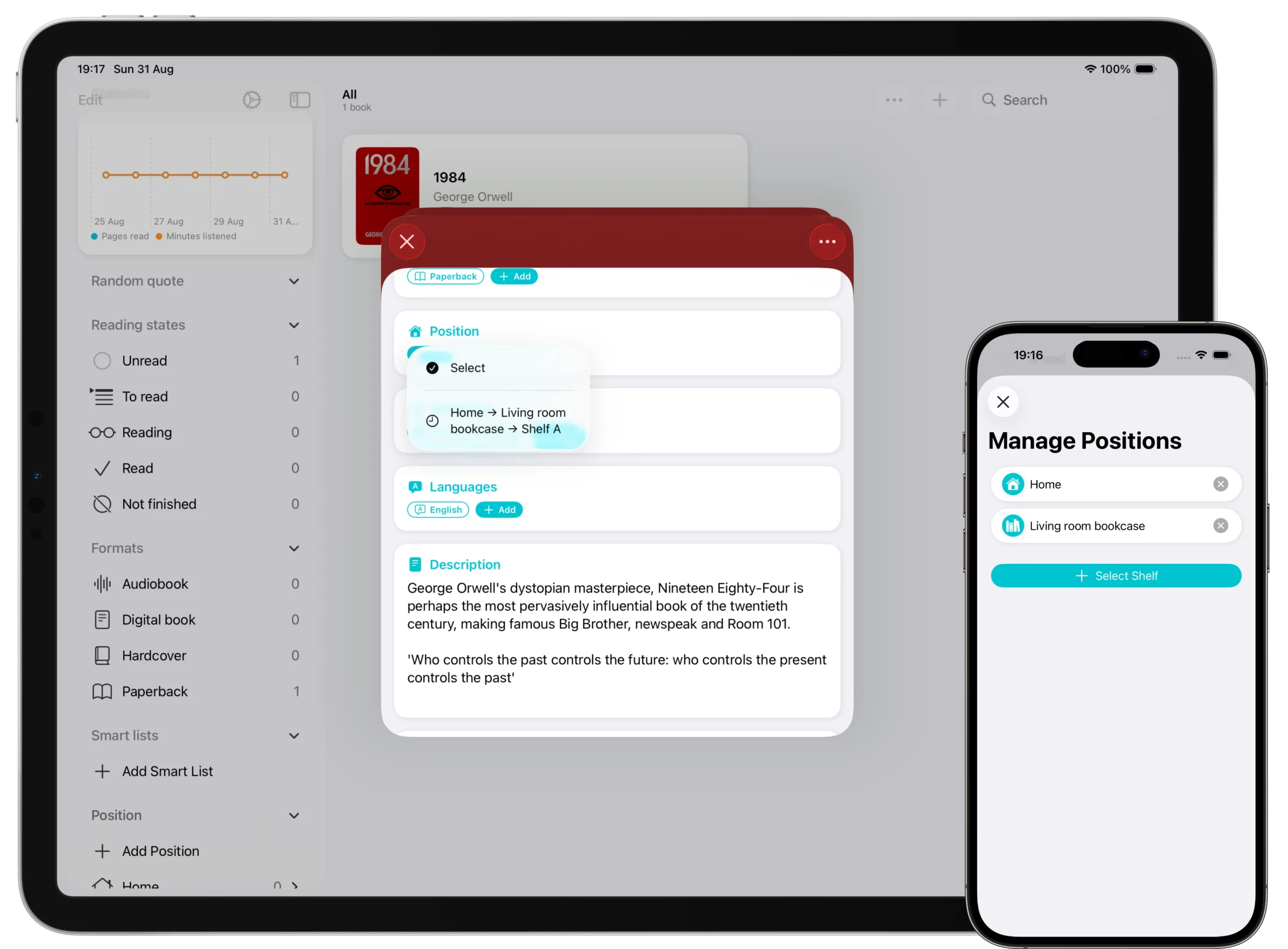
There are several ways to set a Position:
- When editing or adding a book
- Open the book detail page.
- Tap Edit (top of the page).
- Scroll to the Position section.
- Select + Add.
- From the book detail page (quick assign)
- Tap the three-dot menu (top-right).
- Select Assign → Position.
- From the book list
- Long press a book (on iPhone/iPad) or right-click (on Mac).
- Select Assign → Position.
How to create a new Location, Bookcase, or Shelf
To create a new element of the Position hierarchy:
- Open a book’s detail page and tap Edit.
- Go to the Position section and tap + Add.
- From the context menu, choose Create.
- Enter the name and confirm. The new Position is saved and immediately available for any other book.
How to edit an existing Location, Bookcase, or Shelf
You can rename a Position in two ways:
- From the home (iPhone) or sidebar (iPad and Mac)
- Long press on a Location, Bookcase, or Shelf (right-click on Mac).
- Select Edit.
- From the list view of a Location, Bookcase, or Shelf
- Open the list of books for that Position.
- Tap the three-dot menu (top-right).
- Select Edit.
The new name applies automatically to all books assigned to that Position.
How to delete a Location, Bookcase, or Shelf
If you’ve created a Position by mistake, or if you no longer need it, you can delete it in two ways:
- From the home (iPhone) or sidebar (iPad and Mac)
- Long press on the Location, Bookcase, or Shelf (right-click on Mac).
- Tap Delete.
- From the list view of the Position
- Open the list of books for that Location, Bookcase, or Shelf.
- Tap the three-dot menu (top-right).
- Select Edit → Delete.
Important notes about deletion
- Books assigned to a deleted Location, Bookcase, or Shelf remain in your library. They simply lose their Position information.
- Deletion is permanent: a deleted Position cannot be restored.
- If a Bookcase contains Shelves, deleting the Bookcase also removes its Shelves.
Why Positions are useful
- Large libraries → organize hundreds or thousands of books across multiple rooms.
- Multiple locations → separate collections (home, office, vacation house, storage).
- Detailed cataloging → replicate your physical shelves digitally if you want precise tracking.
- Flexible → keep it simple with only Location, or add Bookcase and Shelf for more granularity.
Best practices
- Start by creating Locations that reflect real-world places (Home, Office, etc.).
- Add Bookcases only when you need to distinguish between multiple bookcases in the same room.
- Use Shelves for maximum detail if you want to mirror your library exactly.
- Keep naming consistent — for example, Living Room → Main Bookcase → Shelf 1.
✅ With Positions, Book Tracker lets you decide how detailed your catalog should be, from a simple list of locations to a full digital replica of your library.
Related
- How to use Bulk Edit in Book Tracker — assign or change Positions on many books at once.
- How to use Tags and Smart Lists — complementary ways to organize books beyond physical placement.