
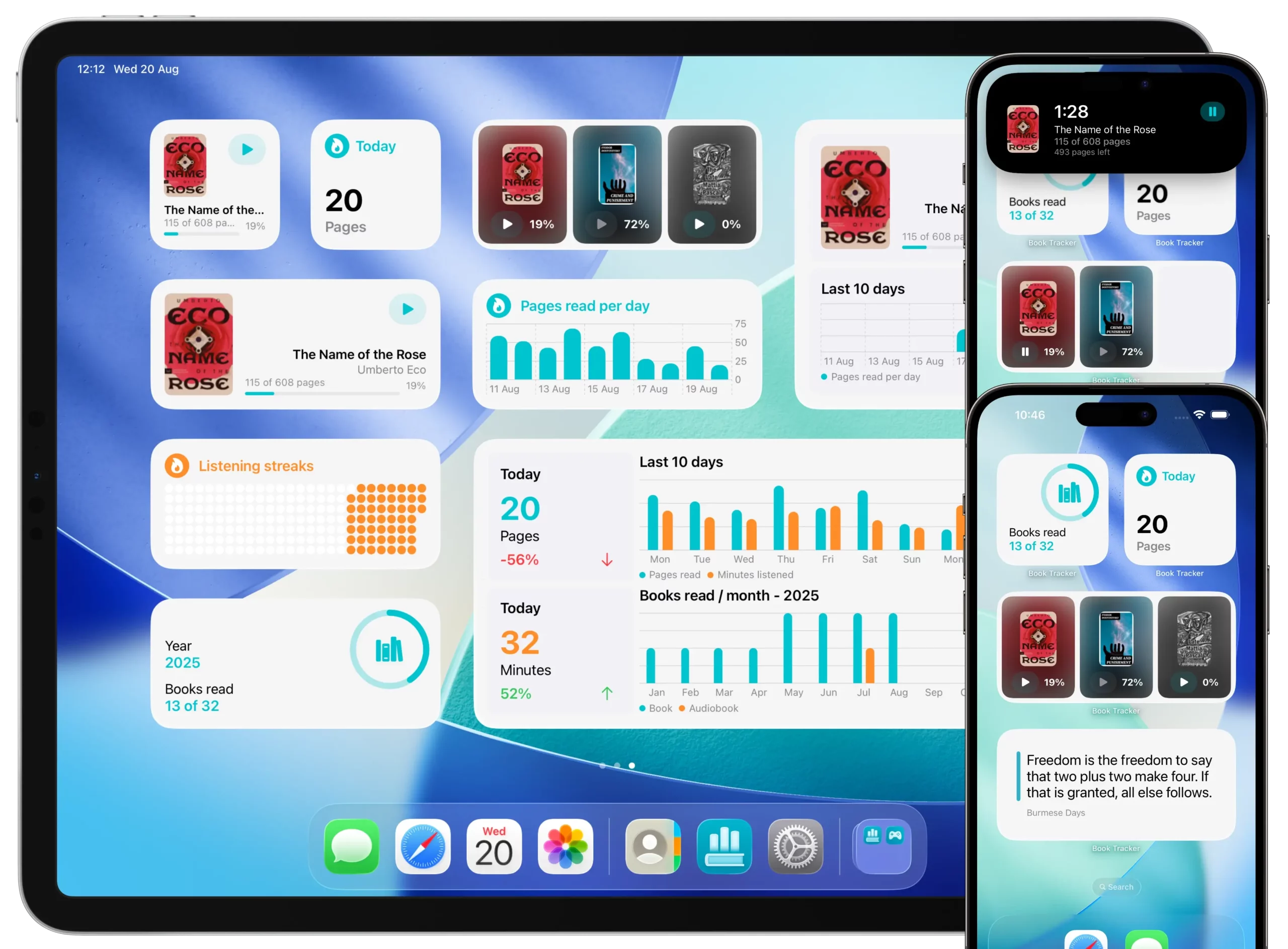
The Reading Timer in Book Tracker lets you log time spent reading automatically. Once it’s running, it integrates with Live Activity, the Dynamic Island, interactive widgets, Control Center, Shortcuts, and Siri, so you can start, pause, and resume a reading session from almost anywhere on your device without opening the app.
This tutorial covers the full flow on every platform.
What you need first
The Reading Timer is tied to a specific Reading Status. Before you can start a timer, the book must have an active Reading Status in the Reading state.
If you don’t have one yet, see How to use Reading Status to create one in 10 seconds.
How to start the Reading Timer
There are two paths into the timer:
From the book detail page
- Open the book.
- Tap the active Reading Status under the book details.
- Tap Start Timer (the play icon).
From the home / sidebar
- Tap one of the books listed under your ongoing readings (Reading status). On iPhone this is in the Home; on iPad and Mac it’s in the Sidebar.
- This opens the Reading Status page directly.
- Tap Start Timer.
Once the timer is running, you can leave Book Tracker and the session keeps going in the background.
Where the running timer appears
On iPhone (iOS 16.2+)
- Lock Screen: a Live Activity shows the book and the elapsed time. You can pause and resume directly from the Lock Screen.
- Dynamic Island (iPhone 14 Pro and later): the compact display shows the elapsed time; long press to expand it and access pause/resume.
- Home Screen: any Book Tracker widget configured for the timer updates in real time.
On iPad (iPadOS 17+)
- Lock Screen: same Live Activity as iPhone, book and elapsed time, with pause/resume.
- Home Screen: same interactive widgets.
On Mac
- The timer runs in the background while Book Tracker is open. There’s no Live Activity or Dynamic Island on macOS, those are iPhone/iPad features, but desktop widgets show the running session.
On Apple Watch
The Watch app has its own active reading session view with a timer that mirrors the iPhone.
Controlling the timer without opening Book Tracker
You don’t need to open the app to manage the timer.
Interactive widgets
The Book Tracker widget for the active reading session is interactive: tap pause or resume directly on the widget. Works on Home Screen, Lock Screen, StandBy, and the Mac desktop. The Live Activity updates instantly.
Control Center (iOS 18+)
Book Tracker provides a Reading Timer toggle for Control Center. Add it once (Control Center → + → Book Tracker), and from then on you can start or stop the timer with a single tap from any screen.
Shortcuts
Four actions are available in the Shortcuts app for the Reading Timer:
- Start a Reading Session
- Pause a Reading Session
- Resume a Reading Session
- Stop a Reading Session
These let you build automations like “Start reading at 9 PM”: when the shortcut runs, the timer starts automatically and a Live Activity appears, the widget updates, the Dynamic Island shows the session. Everything stays in sync.
Siri
Because Shortcuts integrate with Siri, you can simply say:
- “Hey Siri, start reading.”
- “Hey Siri, pause reading.”
- “Hey Siri, stop reading.”
For more complex automations, see How to use Book Tracker with Shortcuts and Siri.
When you stop the timer
When you stop a reading session, Book Tracker asks how much you read during it:
- For Pages tracking → enter the last page reached (or the number of pages).
- For Time tracking (audiobooks) → the time is logged automatically.
- For Percentage tracking → enter the percentage you reached.
The session is recorded as a progress entry, exactly as if you’d added it manually. You can review it in the Reading Status, edit it, or delete it. See How to track detailed reading progress for details on managing progress entries.
Best practices
- Use the Reading Timer to keep your time statistics accurate. Book Tracker can show pages per hour, estimated completion time, and reading streaks only if you’ve timed your sessions.
- On iPhone with Dynamic Island, you don’t need to reopen the app to pause when something interrupts you. Just long press the Island.
- Combine the timer with Focus mode to silence notifications during reading. Use a Shortcut to start both at once.
- If you forget to start the timer, don’t worry, add a manual progress entry at the end of your session. See the tracking progress tutorial.
Platform availability at a glance
| Feature | iPhone | iPad | Mac | Apple Watch |
|---|---|---|---|---|
| Reading Timer | ✅ | ✅ | ✅ | ✅ |
| Live Activity | ✅ (iOS 16.2+) | ✅ (iPadOS 17+) | ❌ | ❌ |
| Dynamic Island | ✅ (iPhone 14 Pro+) | ❌ | ❌ | ❌ |
| Interactive widgets | ✅ (iOS 17+) | ✅ | ✅ | ✅ (complications) |
| Control Center toggle | ✅ (iOS 18+) | ✅ (iPadOS 18+) | ❌ | ❌ |
| Shortcuts / Siri | ✅ | ✅ | ✅ | ✅ |
Related
- How to use Reading Status — create the Reading Status the timer needs.
- How to track detailed reading progress — manual entry, edit, and convert tracking type.
- How to customize your app with Widgets
- How to use Book Tracker with Shortcuts and Siri